> ## Documentation Index
> Fetch the complete documentation index at: https://docs-dev-chore-myaccount-api-autoupdate.mintlify.site/llms.txt
> Use this file to discover all available pages before exploring further.

> Découvrez comment configurer un formulaire de mise à jour de politique à l’aide de Forms for Actions afin que les utilisateurs puissent examiner et accepter de nouvelles conditions d’utilisation ou des mises à jour de consentement.

# Cas d’utilisation : Configurer un formulaire de mise à jour de politique à l’aide de Forms

<Card title="Avant de commencer">
  1. Créez une [application Machine-to-Machine](/docs/fr-ca/get-started/auth0-overview/create-applications/machine-to-machine-apps) avec les scopes suivants activés :

  * `read:users`
  * `update:users`
  * `create:users`
  * `read:users_app_metadata`
  * `update:users_app_metadata`
  * `create:users_app_metadata`

  2. Ajoutez une [connexion Vault](/docs/fr-ca/customize/forms/vault) à l’aide des identifiants de l’application M2M.
</Card>

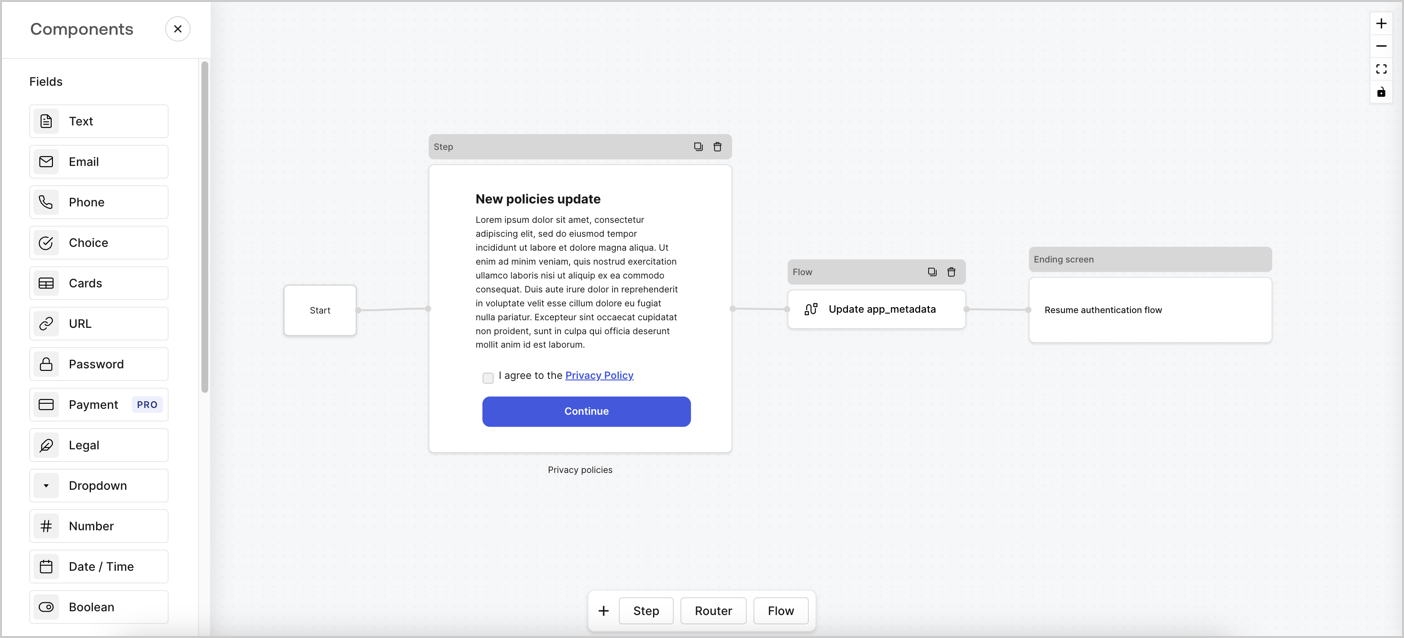
Forms for Actions vous permet de créer des flux personnalisés liés aux politiques de confidentialité et d’enregistrer le consentement dans l’objet `app_metadata`.
<Frame>
  <img src="https://mintcdn.com/docs-dev-chore-myaccount-api-autoupdate/TwrLWOmtEE_zyIZg/docs/images/cdy7uua7fh8z/6i68dMvHDTijfRmSgN1x8Q/ad900e7d4c0fb34645921435472b8684/privavy-policy-form.png?fit=max&auto=format&n=TwrLWOmtEE_zyIZg&q=85&s=2b7ef58ef01293e830d28a31a49b6364" alt="Dashboard > Actions > Forms > Cas d’utilisation de politique de confidentialité" data-og-width="1404" width="1404" data-og-height="638" height="638" data-path="docs/images/cdy7uua7fh8z/6i68dMvHDTijfRmSgN1x8Q/ad900e7d4c0fb34645921435472b8684/privavy-policy-form.png" data-optimize="true" data-opv="3" srcset="https://mintcdn.com/docs-dev-chore-myaccount-api-autoupdate/TwrLWOmtEE_zyIZg/docs/images/cdy7uua7fh8z/6i68dMvHDTijfRmSgN1x8Q/ad900e7d4c0fb34645921435472b8684/privavy-policy-form.png?w=280&fit=max&auto=format&n=TwrLWOmtEE_zyIZg&q=85&s=08f231086959d39d319834ac290952f4 280w, https://mintcdn.com/docs-dev-chore-myaccount-api-autoupdate/TwrLWOmtEE_zyIZg/docs/images/cdy7uua7fh8z/6i68dMvHDTijfRmSgN1x8Q/ad900e7d4c0fb34645921435472b8684/privavy-policy-form.png?w=560&fit=max&auto=format&n=TwrLWOmtEE_zyIZg&q=85&s=a6426defc6efbd50adee34849ceba458 560w, https://mintcdn.com/docs-dev-chore-myaccount-api-autoupdate/TwrLWOmtEE_zyIZg/docs/images/cdy7uua7fh8z/6i68dMvHDTijfRmSgN1x8Q/ad900e7d4c0fb34645921435472b8684/privavy-policy-form.png?w=840&fit=max&auto=format&n=TwrLWOmtEE_zyIZg&q=85&s=8ded2920dbd42bdd37507255622bc2f3 840w, https://mintcdn.com/docs-dev-chore-myaccount-api-autoupdate/TwrLWOmtEE_zyIZg/docs/images/cdy7uua7fh8z/6i68dMvHDTijfRmSgN1x8Q/ad900e7d4c0fb34645921435472b8684/privavy-policy-form.png?w=1100&fit=max&auto=format&n=TwrLWOmtEE_zyIZg&q=85&s=7dd7cec0cdee8a71436543906e4657b7 1100w, https://mintcdn.com/docs-dev-chore-myaccount-api-autoupdate/TwrLWOmtEE_zyIZg/docs/images/cdy7uua7fh8z/6i68dMvHDTijfRmSgN1x8Q/ad900e7d4c0fb34645921435472b8684/privavy-policy-form.png?w=1650&fit=max&auto=format&n=TwrLWOmtEE_zyIZg&q=85&s=8aa8beb51d0927dfb97ffdf72f74603e 1650w, https://mintcdn.com/docs-dev-chore-myaccount-api-autoupdate/TwrLWOmtEE_zyIZg/docs/images/cdy7uua7fh8z/6i68dMvHDTijfRmSgN1x8Q/ad900e7d4c0fb34645921435472b8684/privavy-policy-form.png?w=2500&fit=max&auto=format&n=TwrLWOmtEE_zyIZg&q=85&s=838260ac8ac945cbf2addbda5c91905e 2500w" />
</Frame>

Les sections ci-dessous expliquent comment créer un formulaire de mise à jour de politique à l’aide de nœuds et de flux, ainsi que les étapes pour ajouter votre formulaire à une Action [Post Login](/docs/fr-ca/customize/actions/explore-triggers/signup-and-login-triggers/login-trigger).

<h2 id="create-a-form-from-scratch">
  Créer un formulaire à partir de zéro
</h2>

Suivez ces étapes pour créer un formulaire afin de recueillir des informations :

1. Ouvrez l’éditeur de formulaires en sélectionnant **Auth0 Dashboard > Actions > Forms.**
2. Sélectionnez **Create Form** > **Start from scratch**.

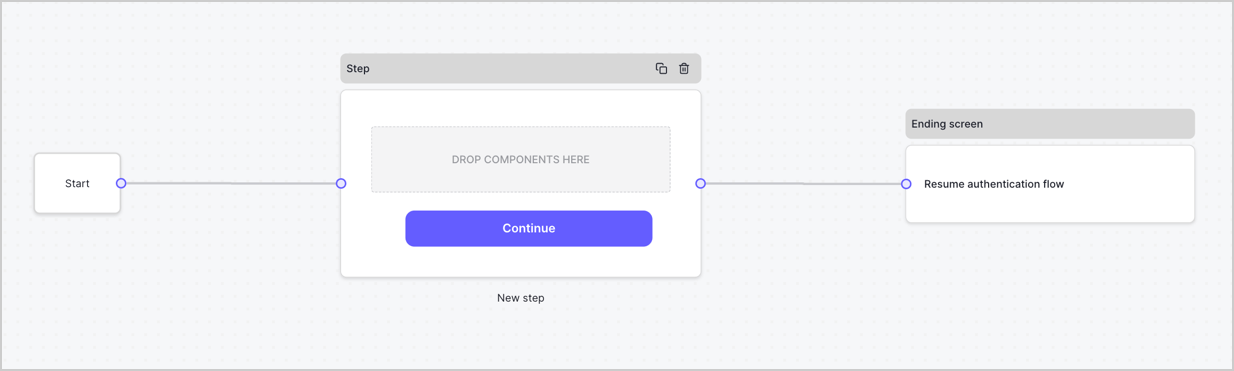
Par défaut, un nouveau formulaire contient un nœud Start, un nœud Step et un nœud Ending screen.
<Frame>
  <img src="https://mintcdn.com/docs-dev-chore-myaccount-api-autoupdate/xjbLFTbb3mNkqhP2/docs/images/cdy7uua7fh8z/2TZ9jSjgEcARFpULI6hz4R/a4319a1bd482f2ee5cc23100fdb2f42c/New-form-Forms-for-action-use-case.png?fit=max&auto=format&n=xjbLFTbb3mNkqhP2&q=85&s=626e8e4b4a558105ec3bc1d9728ad506" alt="Dashboard > Forms > Use Cases > Form" data-og-width="1234" width="1234" data-og-height="371" height="371" data-path="docs/images/cdy7uua7fh8z/2TZ9jSjgEcARFpULI6hz4R/a4319a1bd482f2ee5cc23100fdb2f42c/New-form-Forms-for-action-use-case.png" data-optimize="true" data-opv="3" srcset="https://mintcdn.com/docs-dev-chore-myaccount-api-autoupdate/xjbLFTbb3mNkqhP2/docs/images/cdy7uua7fh8z/2TZ9jSjgEcARFpULI6hz4R/a4319a1bd482f2ee5cc23100fdb2f42c/New-form-Forms-for-action-use-case.png?w=280&fit=max&auto=format&n=xjbLFTbb3mNkqhP2&q=85&s=bed0c3ac0b9a2bba9a7fa4263582c4d6 280w, https://mintcdn.com/docs-dev-chore-myaccount-api-autoupdate/xjbLFTbb3mNkqhP2/docs/images/cdy7uua7fh8z/2TZ9jSjgEcARFpULI6hz4R/a4319a1bd482f2ee5cc23100fdb2f42c/New-form-Forms-for-action-use-case.png?w=560&fit=max&auto=format&n=xjbLFTbb3mNkqhP2&q=85&s=437ae6cd8819a989ae0aa8a9e722360e 560w, https://mintcdn.com/docs-dev-chore-myaccount-api-autoupdate/xjbLFTbb3mNkqhP2/docs/images/cdy7uua7fh8z/2TZ9jSjgEcARFpULI6hz4R/a4319a1bd482f2ee5cc23100fdb2f42c/New-form-Forms-for-action-use-case.png?w=840&fit=max&auto=format&n=xjbLFTbb3mNkqhP2&q=85&s=86abeb65a6d975f3c9608d3332b02e33 840w, https://mintcdn.com/docs-dev-chore-myaccount-api-autoupdate/xjbLFTbb3mNkqhP2/docs/images/cdy7uua7fh8z/2TZ9jSjgEcARFpULI6hz4R/a4319a1bd482f2ee5cc23100fdb2f42c/New-form-Forms-for-action-use-case.png?w=1100&fit=max&auto=format&n=xjbLFTbb3mNkqhP2&q=85&s=5f121720a4068308e4d65caef9cd8a8d 1100w, https://mintcdn.com/docs-dev-chore-myaccount-api-autoupdate/xjbLFTbb3mNkqhP2/docs/images/cdy7uua7fh8z/2TZ9jSjgEcARFpULI6hz4R/a4319a1bd482f2ee5cc23100fdb2f42c/New-form-Forms-for-action-use-case.png?w=1650&fit=max&auto=format&n=xjbLFTbb3mNkqhP2&q=85&s=455f12f3596ed4f0aee4dc81955a8b9a 1650w, https://mintcdn.com/docs-dev-chore-myaccount-api-autoupdate/xjbLFTbb3mNkqhP2/docs/images/cdy7uua7fh8z/2TZ9jSjgEcARFpULI6hz4R/a4319a1bd482f2ee5cc23100fdb2f42c/New-form-Forms-for-action-use-case.png?w=2500&fit=max&auto=format&n=xjbLFTbb3mNkqhP2&q=85&s=90874a428dada9f35e827291a078a4a6 2500w" />
</Frame>

<h3 id="configure-the-step-node">
  Configurer le nœud Step
</h3>

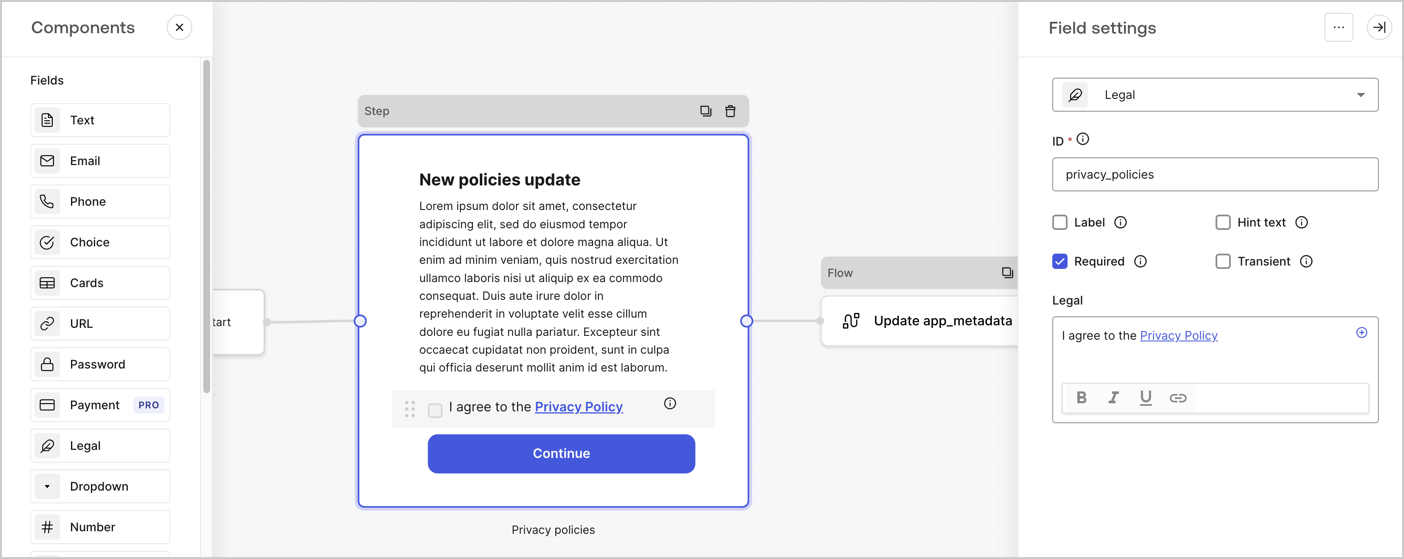
Le nœud Step est l’interface graphique visible par les utilisateurs. Ajoutez des [champs](/docs/fr-ca/customize/forms/nodes-and-components) au nœud Step pour recueillir la nouvelle valeur d’acceptation en suivant ces étapes :

1. Faites glisser un champ **Texte enrichi** du **menu Composants** vers le nœud **Step**.

   * **Texte enrichi** : Saisissez une description des mises à jour apportées à votre politique de confidentialité.
   * Sélectionnez **Enregistrer**.
2. Faites glisser un champ **Juridique** vers le nœud **Step**.

   * **ID** : Saisissez `privacy_policies`.
   * **Obligatoire** : Cochez la case.
   * **Juridique** : Saisissez `J’accepte la politique de confidentialité`.
   * Sélectionnez **Enregistrer**.
3. Sélectionnez **Publier** pour enregistrer.
<Frame>
  <img src="https://mintcdn.com/docs-dev-chore-myaccount-api-autoupdate/yeB-_kMT57yxnTpV/docs/images/cdy7uua7fh8z/59zFFjQjAnjogkc2QGIqqJ/0ad66b1b636544122aa4e65968b76c2c/privacy-policy-step-node.png?fit=max&auto=format&n=yeB-_kMT57yxnTpV&q=85&s=f103bf22bf111cfec6a269428890945b" alt="Dashboard > Actions > Forms > Cas d’utilisation du nœud Step de la politique de confidentialité" data-og-width="1404" width="1404" data-og-height="559" height="559" data-path="docs/images/cdy7uua7fh8z/59zFFjQjAnjogkc2QGIqqJ/0ad66b1b636544122aa4e65968b76c2c/privacy-policy-step-node.png" data-optimize="true" data-opv="3" srcset="https://mintcdn.com/docs-dev-chore-myaccount-api-autoupdate/yeB-_kMT57yxnTpV/docs/images/cdy7uua7fh8z/59zFFjQjAnjogkc2QGIqqJ/0ad66b1b636544122aa4e65968b76c2c/privacy-policy-step-node.png?w=280&fit=max&auto=format&n=yeB-_kMT57yxnTpV&q=85&s=6df2360cf903db0389ea1be28f532cdc 280w, https://mintcdn.com/docs-dev-chore-myaccount-api-autoupdate/yeB-_kMT57yxnTpV/docs/images/cdy7uua7fh8z/59zFFjQjAnjogkc2QGIqqJ/0ad66b1b636544122aa4e65968b76c2c/privacy-policy-step-node.png?w=560&fit=max&auto=format&n=yeB-_kMT57yxnTpV&q=85&s=2170cb6cf181da80b96c892c5bb68d4b 560w, https://mintcdn.com/docs-dev-chore-myaccount-api-autoupdate/yeB-_kMT57yxnTpV/docs/images/cdy7uua7fh8z/59zFFjQjAnjogkc2QGIqqJ/0ad66b1b636544122aa4e65968b76c2c/privacy-policy-step-node.png?w=840&fit=max&auto=format&n=yeB-_kMT57yxnTpV&q=85&s=012e86fc2787c4f7f5a6caae3b7dafdf 840w, https://mintcdn.com/docs-dev-chore-myaccount-api-autoupdate/yeB-_kMT57yxnTpV/docs/images/cdy7uua7fh8z/59zFFjQjAnjogkc2QGIqqJ/0ad66b1b636544122aa4e65968b76c2c/privacy-policy-step-node.png?w=1100&fit=max&auto=format&n=yeB-_kMT57yxnTpV&q=85&s=657af9601411e4c18763b52fb4c5c20f 1100w, https://mintcdn.com/docs-dev-chore-myaccount-api-autoupdate/yeB-_kMT57yxnTpV/docs/images/cdy7uua7fh8z/59zFFjQjAnjogkc2QGIqqJ/0ad66b1b636544122aa4e65968b76c2c/privacy-policy-step-node.png?w=1650&fit=max&auto=format&n=yeB-_kMT57yxnTpV&q=85&s=36810e6de566ef1a8cf8abf922722b5f 1650w, https://mintcdn.com/docs-dev-chore-myaccount-api-autoupdate/yeB-_kMT57yxnTpV/docs/images/cdy7uua7fh8z/59zFFjQjAnjogkc2QGIqqJ/0ad66b1b636544122aa4e65968b76c2c/privacy-policy-step-node.png?w=2500&fit=max&auto=format&n=yeB-_kMT57yxnTpV&q=85&s=0db9dbe65784661ae3bdede4fb0c5950 2500w" />
</Frame>

<h3 id="configure-the-flow-node">
  Configurer le nœud **Flow**
</h3>

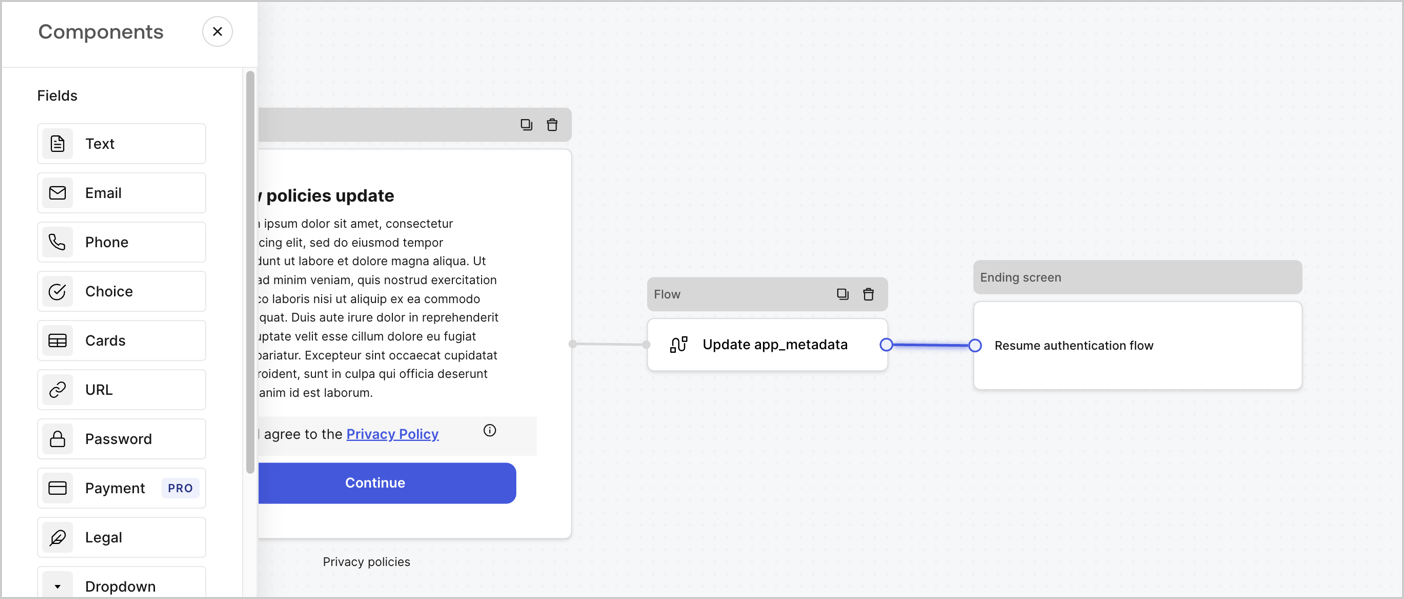
Ajoutez un nœud **Flow** après le nœud **Step** pour mettre à jour `app_metadata` et reprendre le flux d’authentification en suivant les étapes ci-dessous :

1. Sélectionnez **Flow** au bas de l’éditeur de formulaires.
2. Supprimez le lien existant entre les nœuds **Step** et **Ending Screen**.
3. Sélectionnez le nouveau **Flow** > **Click to add a flow** > **Create a new flow.**

   * Entrez `Update app_metadata` dans le champ **Name**.
   * Sélectionnez **Create**.
   * Sélectionnez **Save**.
4. Reliez le nœud **Flow** aux nœuds **Step** et **Ending Screen**, comme illustré ci-dessous.
5. Sélectionnez **Publish** pour enregistrer.
<Frame>
  <img src="https://mintcdn.com/docs-dev-chore-myaccount-api-autoupdate/TwrLWOmtEE_zyIZg/docs/images/cdy7uua7fh8z/6YIkzm7SrpM9LW76AXuRzh/353c518fe82bbaa440836da1d83596d6/link-policies.png?fit=max&auto=format&n=TwrLWOmtEE_zyIZg&q=85&s=3d6a47f2cc06ef4a1de85a8f34f46814" alt="Dashboard > Actions > Forms > Form" data-og-width="1404" width="1404" data-og-height="599" height="599" data-path="docs/images/cdy7uua7fh8z/6YIkzm7SrpM9LW76AXuRzh/353c518fe82bbaa440836da1d83596d6/link-policies.png" data-optimize="true" data-opv="3" srcset="https://mintcdn.com/docs-dev-chore-myaccount-api-autoupdate/TwrLWOmtEE_zyIZg/docs/images/cdy7uua7fh8z/6YIkzm7SrpM9LW76AXuRzh/353c518fe82bbaa440836da1d83596d6/link-policies.png?w=280&fit=max&auto=format&n=TwrLWOmtEE_zyIZg&q=85&s=4418df3e0b183e812e9691df15f5d60f 280w, https://mintcdn.com/docs-dev-chore-myaccount-api-autoupdate/TwrLWOmtEE_zyIZg/docs/images/cdy7uua7fh8z/6YIkzm7SrpM9LW76AXuRzh/353c518fe82bbaa440836da1d83596d6/link-policies.png?w=560&fit=max&auto=format&n=TwrLWOmtEE_zyIZg&q=85&s=5e5909c3442ba54ba16b7d44beee66ce 560w, https://mintcdn.com/docs-dev-chore-myaccount-api-autoupdate/TwrLWOmtEE_zyIZg/docs/images/cdy7uua7fh8z/6YIkzm7SrpM9LW76AXuRzh/353c518fe82bbaa440836da1d83596d6/link-policies.png?w=840&fit=max&auto=format&n=TwrLWOmtEE_zyIZg&q=85&s=41e66bb767e742708cb1b4ef7b41cb30 840w, https://mintcdn.com/docs-dev-chore-myaccount-api-autoupdate/TwrLWOmtEE_zyIZg/docs/images/cdy7uua7fh8z/6YIkzm7SrpM9LW76AXuRzh/353c518fe82bbaa440836da1d83596d6/link-policies.png?w=1100&fit=max&auto=format&n=TwrLWOmtEE_zyIZg&q=85&s=580328323edaaa78e64d1a46c318cc96 1100w, https://mintcdn.com/docs-dev-chore-myaccount-api-autoupdate/TwrLWOmtEE_zyIZg/docs/images/cdy7uua7fh8z/6YIkzm7SrpM9LW76AXuRzh/353c518fe82bbaa440836da1d83596d6/link-policies.png?w=1650&fit=max&auto=format&n=TwrLWOmtEE_zyIZg&q=85&s=ddc71a586c505fbdc624097af575b651 1650w, https://mintcdn.com/docs-dev-chore-myaccount-api-autoupdate/TwrLWOmtEE_zyIZg/docs/images/cdy7uua7fh8z/6YIkzm7SrpM9LW76AXuRzh/353c518fe82bbaa440836da1d83596d6/link-policies.png?w=2500&fit=max&auto=format&n=TwrLWOmtEE_zyIZg&q=85&s=ab75a68d83e59977f27430951b7451c4 2500w" />
</Frame>

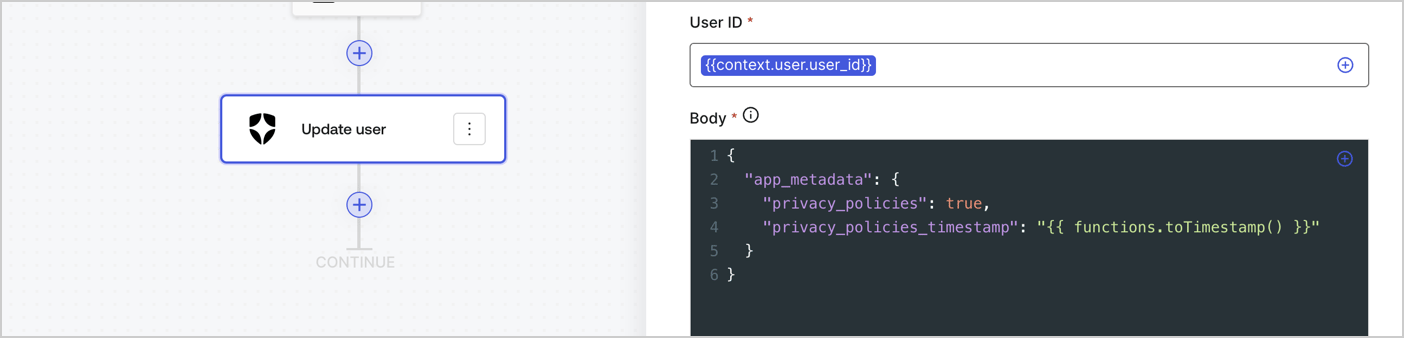
Ajoutez une action Auth0 **Update user** au flux en suivant les étapes ci-dessous :

1. Sélectionnez **Flow** **Update app\_metadata** > **Edit flow** pour ouvrir l’éditeur de flux dans un nouvel onglet.
2. Sous le StartAction, sélectionnez l’icône **+** pour ajouter une action **Update user**. Remplissez les champs ci-dessous, puis sélectionnez **Save** pour continuer.

   * **Connection** : Dans la liste déroulante, sélectionnez la connexion Vault de votre application M2M.

   * **User ID** : Entrez `{{context.user.user_id}}`.

   * **Body** : Copiez-collez le code suivant pour mettre à jour `app_metadata` avec les propriétés `privacy_policies` et `privacy_policies_timestamp`.

     ```text lines theme={null}
     {
       "app_metadata": {
         "privacy_policies": true,
         "privacy_policies_timestamp": "{{ functions.toTimestamp() }}"
       }
     }
     ```

   * Sélectionnez **Save**.
3. Sélectionnez **Publish** pour enregistrer.
<Frame>
  <img src="https://mintcdn.com/docs-dev-chore-myaccount-api-autoupdate/0pc0J-xi5wIlMd5V/docs/images/cdy7uua7fh8z/CvMNIwWrOUwaFW4X3G28p/1fb70ae57a20749d9ffaaba8dc0b7e26/update-user-privacy.png?fit=max&auto=format&n=0pc0J-xi5wIlMd5V&q=85&s=518b06db769f31f362864c94065c37a5" alt="Dashboard > Actions > Forms > User case privacy policy code" data-og-width="1404" width="1404" data-og-height="338" height="338" data-path="docs/images/cdy7uua7fh8z/CvMNIwWrOUwaFW4X3G28p/1fb70ae57a20749d9ffaaba8dc0b7e26/update-user-privacy.png" data-optimize="true" data-opv="3" srcset="https://mintcdn.com/docs-dev-chore-myaccount-api-autoupdate/0pc0J-xi5wIlMd5V/docs/images/cdy7uua7fh8z/CvMNIwWrOUwaFW4X3G28p/1fb70ae57a20749d9ffaaba8dc0b7e26/update-user-privacy.png?w=280&fit=max&auto=format&n=0pc0J-xi5wIlMd5V&q=85&s=a0ffbaae90e7930c64002a9d5c9d46c3 280w, https://mintcdn.com/docs-dev-chore-myaccount-api-autoupdate/0pc0J-xi5wIlMd5V/docs/images/cdy7uua7fh8z/CvMNIwWrOUwaFW4X3G28p/1fb70ae57a20749d9ffaaba8dc0b7e26/update-user-privacy.png?w=560&fit=max&auto=format&n=0pc0J-xi5wIlMd5V&q=85&s=9e876b51167d83ff1355f64afb02d8d6 560w, https://mintcdn.com/docs-dev-chore-myaccount-api-autoupdate/0pc0J-xi5wIlMd5V/docs/images/cdy7uua7fh8z/CvMNIwWrOUwaFW4X3G28p/1fb70ae57a20749d9ffaaba8dc0b7e26/update-user-privacy.png?w=840&fit=max&auto=format&n=0pc0J-xi5wIlMd5V&q=85&s=41a71810a655a2f8855e533b28f8a89c 840w, https://mintcdn.com/docs-dev-chore-myaccount-api-autoupdate/0pc0J-xi5wIlMd5V/docs/images/cdy7uua7fh8z/CvMNIwWrOUwaFW4X3G28p/1fb70ae57a20749d9ffaaba8dc0b7e26/update-user-privacy.png?w=1100&fit=max&auto=format&n=0pc0J-xi5wIlMd5V&q=85&s=0b90083c02dd35a1fd6cbd94991422df 1100w, https://mintcdn.com/docs-dev-chore-myaccount-api-autoupdate/0pc0J-xi5wIlMd5V/docs/images/cdy7uua7fh8z/CvMNIwWrOUwaFW4X3G28p/1fb70ae57a20749d9ffaaba8dc0b7e26/update-user-privacy.png?w=1650&fit=max&auto=format&n=0pc0J-xi5wIlMd5V&q=85&s=17270558ace45087d3b6bc37987dd8b2 1650w, https://mintcdn.com/docs-dev-chore-myaccount-api-autoupdate/0pc0J-xi5wIlMd5V/docs/images/cdy7uua7fh8z/CvMNIwWrOUwaFW4X3G28p/1fb70ae57a20749d9ffaaba8dc0b7e26/update-user-privacy.png?w=2500&fit=max&auto=format&n=0pc0J-xi5wIlMd5V&q=85&s=40881d1d92158d6a0cc0d3d78dceeb89 2500w" />
</Frame>

<Callout icon="file-lines" color="#0EA5E9" iconType="regular">
  Le flux **Update app\_metadata** ajoute la valeur `privacy_policies true` à l’objet `app_metadata` et génère aussi un horodatage à l’aide d’une [fonction utilitaire.](/docs/fr-ca/customize/forms/variables)
</Callout>

<h2 id="retrieve-the-form-render-code">
  Récupérer le code de rendu du formulaire
</h2>

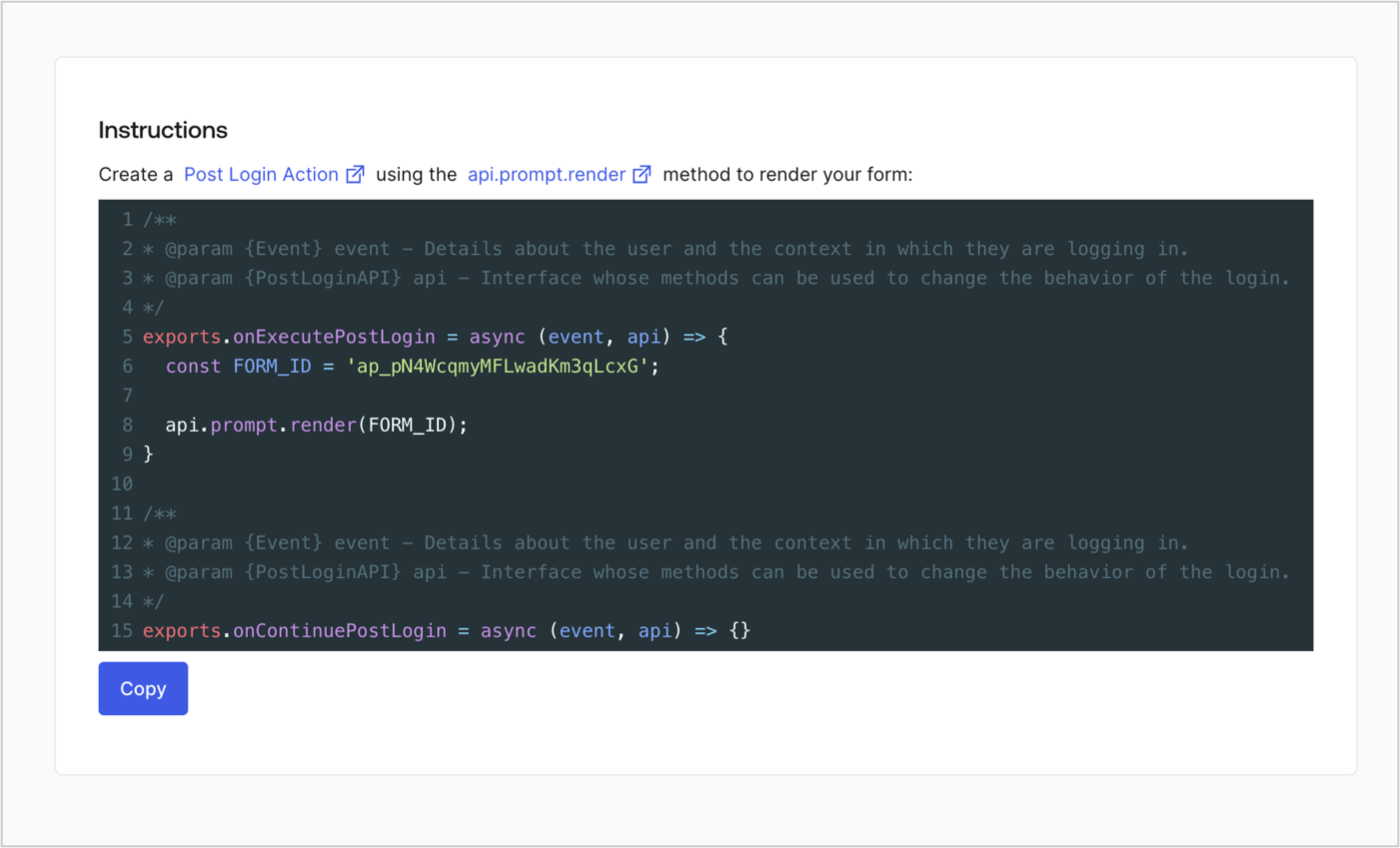
Récupérez le code de rendu de votre formulaire afin d’afficher le formulaire au moyen d’une Action Post Login personnalisée en suivant ces étapes :

* Dans l’éditeur de formulaires, sélectionnez **`<> Render`**.
* Sélectionnez **Copy**.
<Frame>
  <img src="https://mintcdn.com/docs-dev-chore-myaccount-api-autoupdate/8QDqDsYoCi_WTBFO/docs/images/cdy7uua7fh8z/2EIUzc539sq9lwoTKbjoJv/496a864c0fc44a782c9cadca119dbfb0/embed.png?fit=max&auto=format&n=8QDqDsYoCi_WTBFO&q=85&s=741bd11e736604e33d0fb1a59ed78dfe" alt="Dashboard > Actions > Forms > Form > Embed" data-og-width="1400" width="1400" data-og-height="848" height="848" data-path="docs/images/cdy7uua7fh8z/2EIUzc539sq9lwoTKbjoJv/496a864c0fc44a782c9cadca119dbfb0/embed.png" data-optimize="true" data-opv="3" srcset="https://mintcdn.com/docs-dev-chore-myaccount-api-autoupdate/8QDqDsYoCi_WTBFO/docs/images/cdy7uua7fh8z/2EIUzc539sq9lwoTKbjoJv/496a864c0fc44a782c9cadca119dbfb0/embed.png?w=280&fit=max&auto=format&n=8QDqDsYoCi_WTBFO&q=85&s=c48e68074ebe20efb4ce43cc8a3cc182 280w, https://mintcdn.com/docs-dev-chore-myaccount-api-autoupdate/8QDqDsYoCi_WTBFO/docs/images/cdy7uua7fh8z/2EIUzc539sq9lwoTKbjoJv/496a864c0fc44a782c9cadca119dbfb0/embed.png?w=560&fit=max&auto=format&n=8QDqDsYoCi_WTBFO&q=85&s=6a89ef932ef9f113ab5c2303cf5db408 560w, https://mintcdn.com/docs-dev-chore-myaccount-api-autoupdate/8QDqDsYoCi_WTBFO/docs/images/cdy7uua7fh8z/2EIUzc539sq9lwoTKbjoJv/496a864c0fc44a782c9cadca119dbfb0/embed.png?w=840&fit=max&auto=format&n=8QDqDsYoCi_WTBFO&q=85&s=90d6001f103f89f2e67cd24624b6da8d 840w, https://mintcdn.com/docs-dev-chore-myaccount-api-autoupdate/8QDqDsYoCi_WTBFO/docs/images/cdy7uua7fh8z/2EIUzc539sq9lwoTKbjoJv/496a864c0fc44a782c9cadca119dbfb0/embed.png?w=1100&fit=max&auto=format&n=8QDqDsYoCi_WTBFO&q=85&s=ad7ba4837d0eb9ed48910c7d4a32c2aa 1100w, https://mintcdn.com/docs-dev-chore-myaccount-api-autoupdate/8QDqDsYoCi_WTBFO/docs/images/cdy7uua7fh8z/2EIUzc539sq9lwoTKbjoJv/496a864c0fc44a782c9cadca119dbfb0/embed.png?w=1650&fit=max&auto=format&n=8QDqDsYoCi_WTBFO&q=85&s=43015aed00e4bd000b426e5b7bca1c63 1650w, https://mintcdn.com/docs-dev-chore-myaccount-api-autoupdate/8QDqDsYoCi_WTBFO/docs/images/cdy7uua7fh8z/2EIUzc539sq9lwoTKbjoJv/496a864c0fc44a782c9cadca119dbfb0/embed.png?w=2500&fit=max&auto=format&n=8QDqDsYoCi_WTBFO&q=85&s=3c99152e4672f4e458cf5d22ba3bbc81 2500w" />
</Frame>

<h2 id="create-a-post-login-action">
  Créer une Action Post Login
</h2>

Créez une action post-login pour afficher votre formulaire en suivant les étapes ci-dessous :

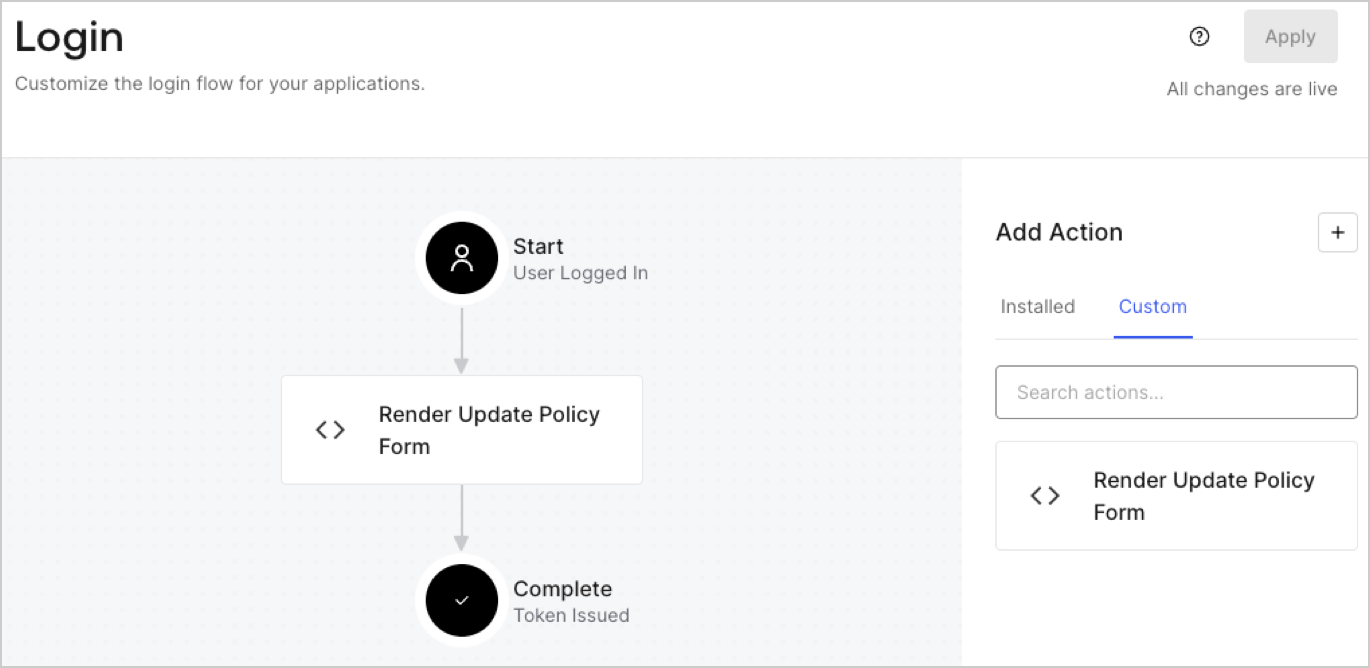
1. Accédez à **Auth0 Dashboard > Actions > Flows > Login.**
2. Sélectionnez l’icône **+**, puis **Build from scratch** :

   * **Nom** : Entrez `Render Update Policy Form`.
   * **Déclencheur** : Sélectionnez `Login / Post Login`.
   * **Runtime** : Sélectionnez la version recommandée.
3. Sélectionnez **Créer**.

Pour configurer l’action post-login :

1. Supprimez le code existant dans l’éditeur de code.
2. Collez le code de rendu du formulaire dans l’éditeur de code.
3. Modifiez le code pour définir la logique conditionnelle qui affichera le formulaire.

   ```javascript lines theme={null}
   /**
   * @param {Event} event - Détails sur l’utilisateur et le contexte dans lequel il se connecte.
   * @param {PostLoginAPI} api - Interface dont les méthodes peuvent être utilisées pour modifier le comportement de la connexion.
   */
   exports.onExecutePostLogin = async (event, api) => {
     const FORM_ID = 'REPLACE_WITH_YOUR_FORM_ID';

     if (event.user.app_metadata.privacy_policies !== true) {
       api.prompt.render(FORM_ID);
     }
   }

   exports.onContinuePostLogin = async (event, api) => { }
   ```

   <Callout icon="file-lines" color="#0EA5E9" iconType="regular">
     L’exemple de code ci-dessus affichera le formulaire si la propriété `privacy_policies` est absente de l’objet app metadata de l’utilisateur.
   </Callout>
4. Sélectionnez **Déployer**.
5. Glissez-déposez l’Action **Render Update Policy Form** dans le flux de **Login**.
   <Frame>
     <img src="https://mintcdn.com/docs-dev-chore-myaccount-api-autoupdate/92Wt_74aRs6J5W5X/docs/images/cdy7uua7fh8z/5TOwDgevZsBqd7yZynUYWU/41ca909dc3007aed4f40ff794a05efa5/postlogin.png?fit=max&auto=format&n=92Wt_74aRs6J5W5X&q=85&s=9f55cab43a942b4eb651b7c05a84e244" alt="Dashboard > Forms > cas d’utilisation > action de connexion pour afficher le formulaire de mise à jour de la politique" data-og-width="1370" width="1370" data-og-height="668" height="668" data-path="docs/images/cdy7uua7fh8z/5TOwDgevZsBqd7yZynUYWU/41ca909dc3007aed4f40ff794a05efa5/postlogin.png" data-optimize="true" data-opv="3" srcset="https://mintcdn.com/docs-dev-chore-myaccount-api-autoupdate/92Wt_74aRs6J5W5X/docs/images/cdy7uua7fh8z/5TOwDgevZsBqd7yZynUYWU/41ca909dc3007aed4f40ff794a05efa5/postlogin.png?w=280&fit=max&auto=format&n=92Wt_74aRs6J5W5X&q=85&s=48567552e117be67fc268be33601d009 280w, https://mintcdn.com/docs-dev-chore-myaccount-api-autoupdate/92Wt_74aRs6J5W5X/docs/images/cdy7uua7fh8z/5TOwDgevZsBqd7yZynUYWU/41ca909dc3007aed4f40ff794a05efa5/postlogin.png?w=560&fit=max&auto=format&n=92Wt_74aRs6J5W5X&q=85&s=625c509f789d7ead7b3e08742e78305f 560w, https://mintcdn.com/docs-dev-chore-myaccount-api-autoupdate/92Wt_74aRs6J5W5X/docs/images/cdy7uua7fh8z/5TOwDgevZsBqd7yZynUYWU/41ca909dc3007aed4f40ff794a05efa5/postlogin.png?w=840&fit=max&auto=format&n=92Wt_74aRs6J5W5X&q=85&s=7fde760bab88d22aaecf43ce5009d9cc 840w, https://mintcdn.com/docs-dev-chore-myaccount-api-autoupdate/92Wt_74aRs6J5W5X/docs/images/cdy7uua7fh8z/5TOwDgevZsBqd7yZynUYWU/41ca909dc3007aed4f40ff794a05efa5/postlogin.png?w=1100&fit=max&auto=format&n=92Wt_74aRs6J5W5X&q=85&s=f1d591bf771a06dc041fc4891861a515 1100w, https://mintcdn.com/docs-dev-chore-myaccount-api-autoupdate/92Wt_74aRs6J5W5X/docs/images/cdy7uua7fh8z/5TOwDgevZsBqd7yZynUYWU/41ca909dc3007aed4f40ff794a05efa5/postlogin.png?w=1650&fit=max&auto=format&n=92Wt_74aRs6J5W5X&q=85&s=b78caf56091e43e9dac24f2de8074d08 1650w, https://mintcdn.com/docs-dev-chore-myaccount-api-autoupdate/92Wt_74aRs6J5W5X/docs/images/cdy7uua7fh8z/5TOwDgevZsBqd7yZynUYWU/41ca909dc3007aed4f40ff794a05efa5/postlogin.png?w=2500&fit=max&auto=format&n=92Wt_74aRs6J5W5X&q=85&s=e3b9771be8b98ce89dc8e4bdfc9b01b5 2500w" />
   </Frame>
6. Sélectionnez **Appliquer**.

<h3 id="test-implementation">
  Test de la mise en œuvre
</h3>

Testez la mise en œuvre en suivant ces étapes :

1. Connectez-vous avec un utilisateur existant dont l’attribut app`_metadata` `privacy_policies` n’a aucune valeur.
2. L’Action post-login dans le flux de Login affichera le formulaire et demandera l’acceptation.
3. Sélectionnez **Auth0 Dashboard > User Management > Users,** repérez l’utilisateur et vérifiez que l’attribut `app_metadata` `privacy_policies` contient la valeur `true` ainsi qu’un horodatage.
