> ## Documentation Index
> Fetch the complete documentation index at: https://docs-dev-chore-myaccount-api-autoupdate.mintlify.site/llms.txt
> Use this file to discover all available pages before exploring further.
> Describes how to set up database connections for applications using the Auth0 Dashboard.
# Set Up Database Connections
You can set up database connections for applications using the Auth0 Dashboard. The configured database connections can be used to log in to your application. To set up a connection, follow the steps below.
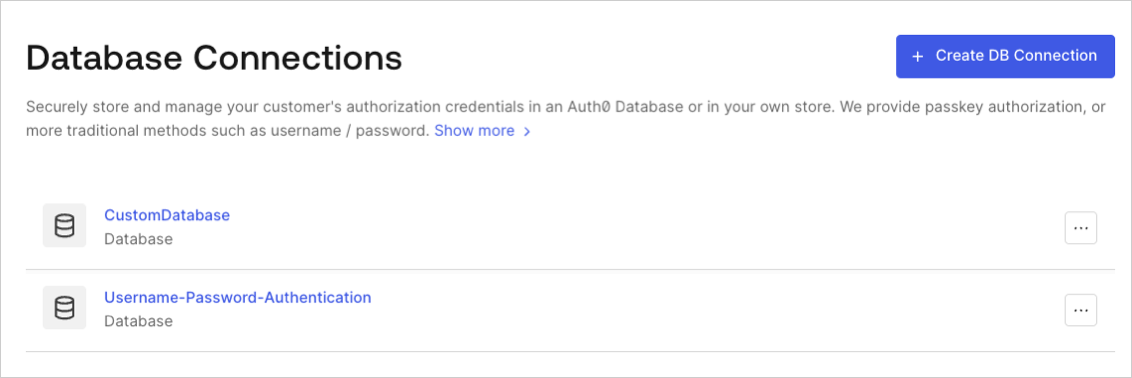
Navigate to [Auth0 Dashboard > Authentication > Database](http://manage.auth0.com/#/connections/database), and select **Create DB Connection**.
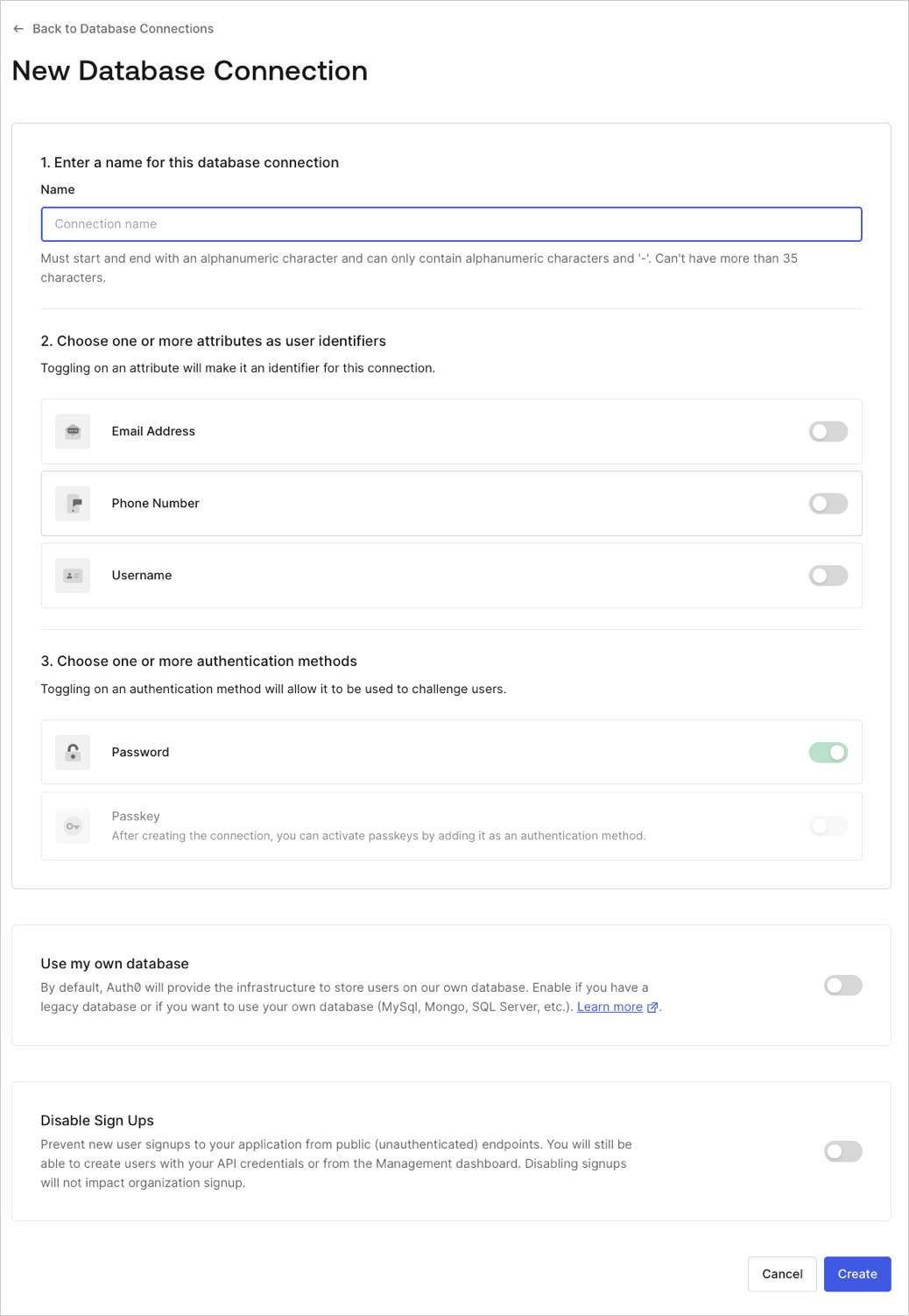
 Enter a name for your connection, and select **Create**.
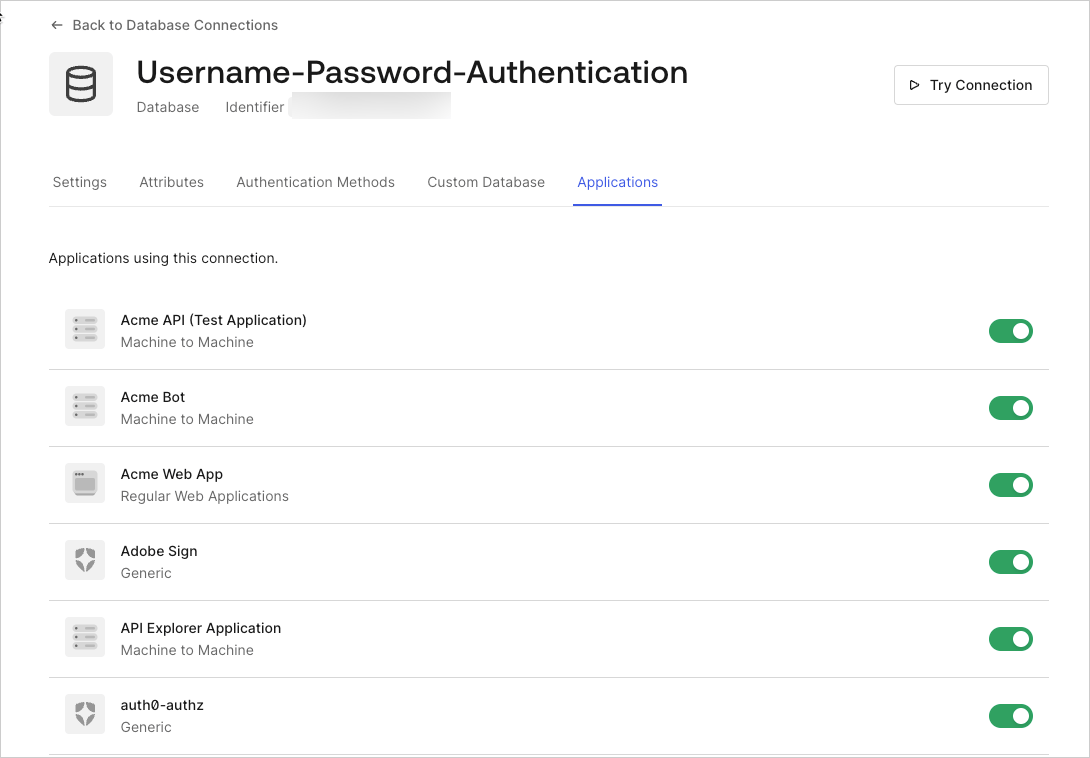
 Select the **Applications** view, enable the switch for each Auth0 application that should be able to use this connection.
 To allow [third-party applications](/docs/get-started/applications/third-party-applications) to authenticate users via a database connection, the connection must be promoted to the domain level. To learn more, read [Promote Connections to Domain Level](/docs/authenticate/identity-providers/promote-connections-to-domain-level).
## Learn more
* [Test Database Connections](/docs/get-started/applications/test-database-connections)
* [Promote Connections to Domain Level](/docs/authenticate/identity-providers/promote-connections-to-domain-level)
To allow [third-party applications](/docs/get-started/applications/third-party-applications) to authenticate users via a database connection, the connection must be promoted to the domain level. To learn more, read [Promote Connections to Domain Level](/docs/authenticate/identity-providers/promote-connections-to-domain-level).
## Learn more
* [Test Database Connections](/docs/get-started/applications/test-database-connections)
* [Promote Connections to Domain Level](/docs/authenticate/identity-providers/promote-connections-to-domain-level)