> ## Documentation Index
> Fetch the complete documentation index at: https://docs-dev-chore-myaccount-api-autoupdate.mintlify.site/llms.txt
> Use this file to discover all available pages before exploring further.

> Forms for Actions を使用して、ユーザーが新しい利用規約または同意に関する更新内容を確認して承諾できるように、更新ポリシーフォームを設定する方法を学びます。

# ユースケース: Forms を使用して更新ポリシーフォームを設定する

<Card title="始める前に">
  1. 次のスコープを有効にして、[Machine-to-Machine Application](/docs/ja-jp/get-started/auth0-overview/create-applications/machine-to-machine-apps) を作成します。

  * `read:users`
  * `update:users`
  * `create:users`
  * `read:users_app_metadata`
  * `update:users_app_metadata`
  * `create:users_app_metadata`

  2. M2M アプリケーションの認証情報を使用して、[Vault 接続](/docs/ja-jp/customize/forms/vault) を追加します。
</Card>

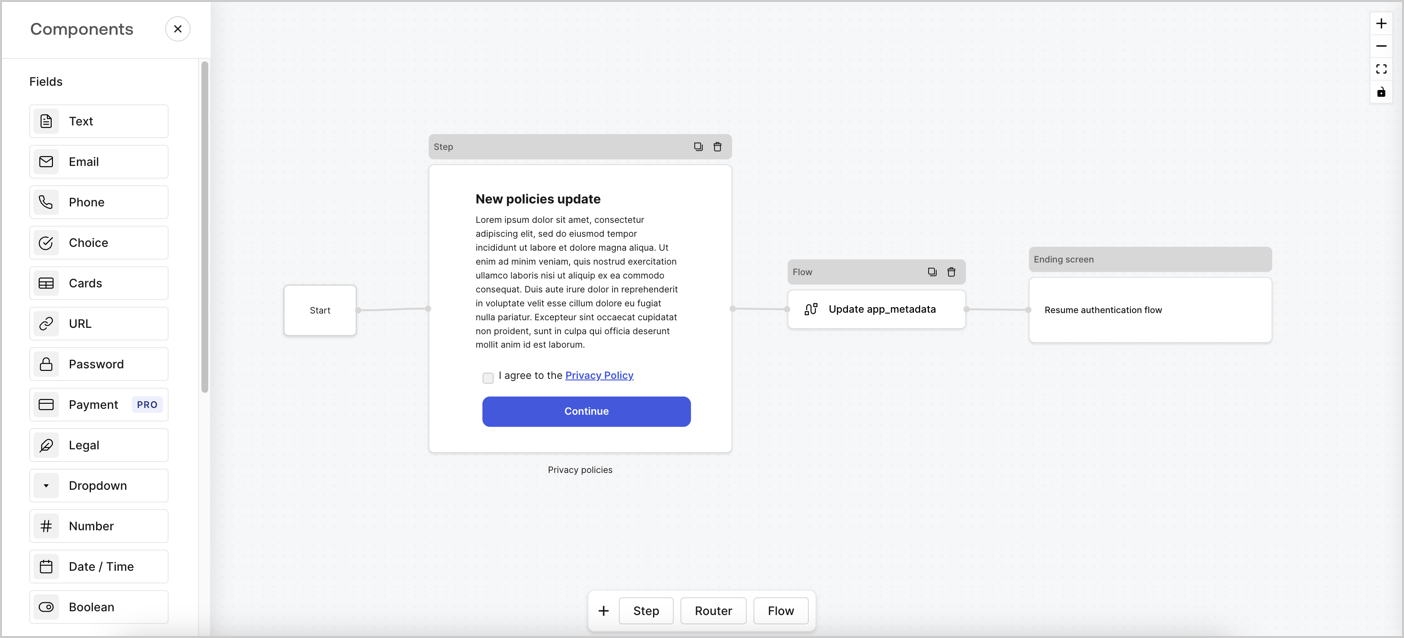
Forms for Actions では、カスタムのプライバシーポリシーフローを作成し、その同意内容を `app_metadata` オブジェクトに保存できます。
<Frame>
  <img src="https://mintcdn.com/docs-dev-chore-myaccount-api-autoupdate/TwrLWOmtEE_zyIZg/docs/images/cdy7uua7fh8z/6i68dMvHDTijfRmSgN1x8Q/ad900e7d4c0fb34645921435472b8684/privavy-policy-form.png?fit=max&auto=format&n=TwrLWOmtEE_zyIZg&q=85&s=2b7ef58ef01293e830d28a31a49b6364" alt="Dashboard > Actions > Forms > Privacy policy use case" data-og-width="1404" width="1404" data-og-height="638" height="638" data-path="docs/images/cdy7uua7fh8z/6i68dMvHDTijfRmSgN1x8Q/ad900e7d4c0fb34645921435472b8684/privavy-policy-form.png" data-optimize="true" data-opv="3" srcset="https://mintcdn.com/docs-dev-chore-myaccount-api-autoupdate/TwrLWOmtEE_zyIZg/docs/images/cdy7uua7fh8z/6i68dMvHDTijfRmSgN1x8Q/ad900e7d4c0fb34645921435472b8684/privavy-policy-form.png?w=280&fit=max&auto=format&n=TwrLWOmtEE_zyIZg&q=85&s=08f231086959d39d319834ac290952f4 280w, https://mintcdn.com/docs-dev-chore-myaccount-api-autoupdate/TwrLWOmtEE_zyIZg/docs/images/cdy7uua7fh8z/6i68dMvHDTijfRmSgN1x8Q/ad900e7d4c0fb34645921435472b8684/privavy-policy-form.png?w=560&fit=max&auto=format&n=TwrLWOmtEE_zyIZg&q=85&s=a6426defc6efbd50adee34849ceba458 560w, https://mintcdn.com/docs-dev-chore-myaccount-api-autoupdate/TwrLWOmtEE_zyIZg/docs/images/cdy7uua7fh8z/6i68dMvHDTijfRmSgN1x8Q/ad900e7d4c0fb34645921435472b8684/privavy-policy-form.png?w=840&fit=max&auto=format&n=TwrLWOmtEE_zyIZg&q=85&s=8ded2920dbd42bdd37507255622bc2f3 840w, https://mintcdn.com/docs-dev-chore-myaccount-api-autoupdate/TwrLWOmtEE_zyIZg/docs/images/cdy7uua7fh8z/6i68dMvHDTijfRmSgN1x8Q/ad900e7d4c0fb34645921435472b8684/privavy-policy-form.png?w=1100&fit=max&auto=format&n=TwrLWOmtEE_zyIZg&q=85&s=7dd7cec0cdee8a71436543906e4657b7 1100w, https://mintcdn.com/docs-dev-chore-myaccount-api-autoupdate/TwrLWOmtEE_zyIZg/docs/images/cdy7uua7fh8z/6i68dMvHDTijfRmSgN1x8Q/ad900e7d4c0fb34645921435472b8684/privavy-policy-form.png?w=1650&fit=max&auto=format&n=TwrLWOmtEE_zyIZg&q=85&s=8aa8beb51d0927dfb97ffdf72f74603e 1650w, https://mintcdn.com/docs-dev-chore-myaccount-api-autoupdate/TwrLWOmtEE_zyIZg/docs/images/cdy7uua7fh8z/6i68dMvHDTijfRmSgN1x8Q/ad900e7d4c0fb34645921435472b8684/privavy-policy-form.png?w=2500&fit=max&auto=format&n=TwrLWOmtEE_zyIZg&q=85&s=838260ac8ac945cbf2addbda5c91905e 2500w" />
</Frame>

以下のセクションでは、ノードとフローを使用して更新ポリシーフォームを作成する方法と、そのフォームを [Post Login](/docs/ja-jp/customize/actions/explore-triggers/signup-and-login-triggers/login-trigger) Action に追加する手順について説明します。

<h2 id="create-a-form-from-scratch">
  フォームを一から作成する
</h2>

情報を収集するためのフォームを作成するには、次の手順に従います。

1. **Auth0 Dashboard > Actions > Forms** を選択して、フォームエディターを開きます。
2. **Create Form** > **Start from scratch** を選択します。

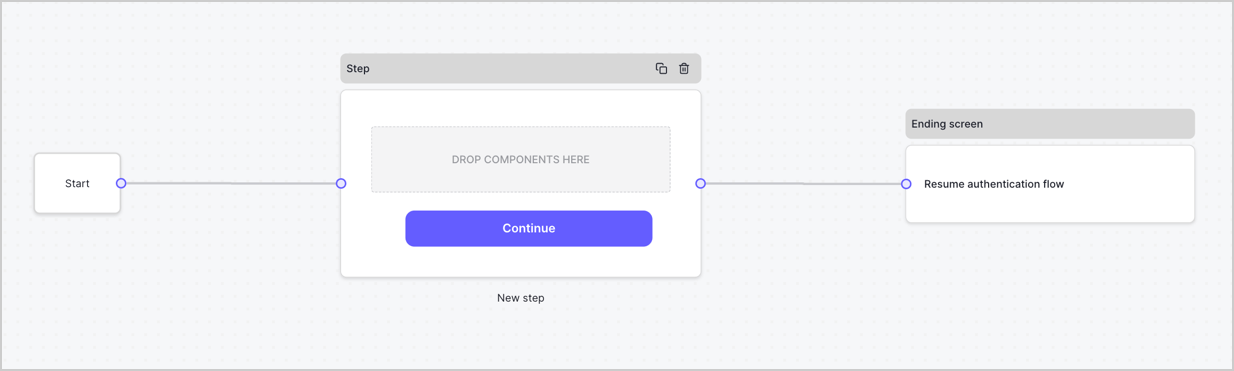
デフォルトでは、新しいフォームには Start ノード、Step ノード、Ending screen ノードが含まれています。
<Frame>
  <img src="https://mintcdn.com/docs-dev-chore-myaccount-api-autoupdate/xjbLFTbb3mNkqhP2/docs/images/cdy7uua7fh8z/2TZ9jSjgEcARFpULI6hz4R/a4319a1bd482f2ee5cc23100fdb2f42c/New-form-Forms-for-action-use-case.png?fit=max&auto=format&n=xjbLFTbb3mNkqhP2&q=85&s=626e8e4b4a558105ec3bc1d9728ad506" alt="Dashboard > Forms > Use Cases > Form" data-og-width="1234" width="1234" data-og-height="371" height="371" data-path="docs/images/cdy7uua7fh8z/2TZ9jSjgEcARFpULI6hz4R/a4319a1bd482f2ee5cc23100fdb2f42c/New-form-Forms-for-action-use-case.png" data-optimize="true" data-opv="3" srcset="https://mintcdn.com/docs-dev-chore-myaccount-api-autoupdate/xjbLFTbb3mNkqhP2/docs/images/cdy7uua7fh8z/2TZ9jSjgEcARFpULI6hz4R/a4319a1bd482f2ee5cc23100fdb2f42c/New-form-Forms-for-action-use-case.png?w=280&fit=max&auto=format&n=xjbLFTbb3mNkqhP2&q=85&s=bed0c3ac0b9a2bba9a7fa4263582c4d6 280w, https://mintcdn.com/docs-dev-chore-myaccount-api-autoupdate/xjbLFTbb3mNkqhP2/docs/images/cdy7uua7fh8z/2TZ9jSjgEcARFpULI6hz4R/a4319a1bd482f2ee5cc23100fdb2f42c/New-form-Forms-for-action-use-case.png?w=560&fit=max&auto=format&n=xjbLFTbb3mNkqhP2&q=85&s=437ae6cd8819a989ae0aa8a9e722360e 560w, https://mintcdn.com/docs-dev-chore-myaccount-api-autoupdate/xjbLFTbb3mNkqhP2/docs/images/cdy7uua7fh8z/2TZ9jSjgEcARFpULI6hz4R/a4319a1bd482f2ee5cc23100fdb2f42c/New-form-Forms-for-action-use-case.png?w=840&fit=max&auto=format&n=xjbLFTbb3mNkqhP2&q=85&s=86abeb65a6d975f3c9608d3332b02e33 840w, https://mintcdn.com/docs-dev-chore-myaccount-api-autoupdate/xjbLFTbb3mNkqhP2/docs/images/cdy7uua7fh8z/2TZ9jSjgEcARFpULI6hz4R/a4319a1bd482f2ee5cc23100fdb2f42c/New-form-Forms-for-action-use-case.png?w=1100&fit=max&auto=format&n=xjbLFTbb3mNkqhP2&q=85&s=5f121720a4068308e4d65caef9cd8a8d 1100w, https://mintcdn.com/docs-dev-chore-myaccount-api-autoupdate/xjbLFTbb3mNkqhP2/docs/images/cdy7uua7fh8z/2TZ9jSjgEcARFpULI6hz4R/a4319a1bd482f2ee5cc23100fdb2f42c/New-form-Forms-for-action-use-case.png?w=1650&fit=max&auto=format&n=xjbLFTbb3mNkqhP2&q=85&s=455f12f3596ed4f0aee4dc81955a8b9a 1650w, https://mintcdn.com/docs-dev-chore-myaccount-api-autoupdate/xjbLFTbb3mNkqhP2/docs/images/cdy7uua7fh8z/2TZ9jSjgEcARFpULI6hz4R/a4319a1bd482f2ee5cc23100fdb2f42c/New-form-Forms-for-action-use-case.png?w=2500&fit=max&auto=format&n=xjbLFTbb3mNkqhP2&q=85&s=90874a428dada9f35e827291a078a4a6 2500w" />
</Frame>

<h3 id="configure-the-step-node">
  Step ノードを設定する
</h3>

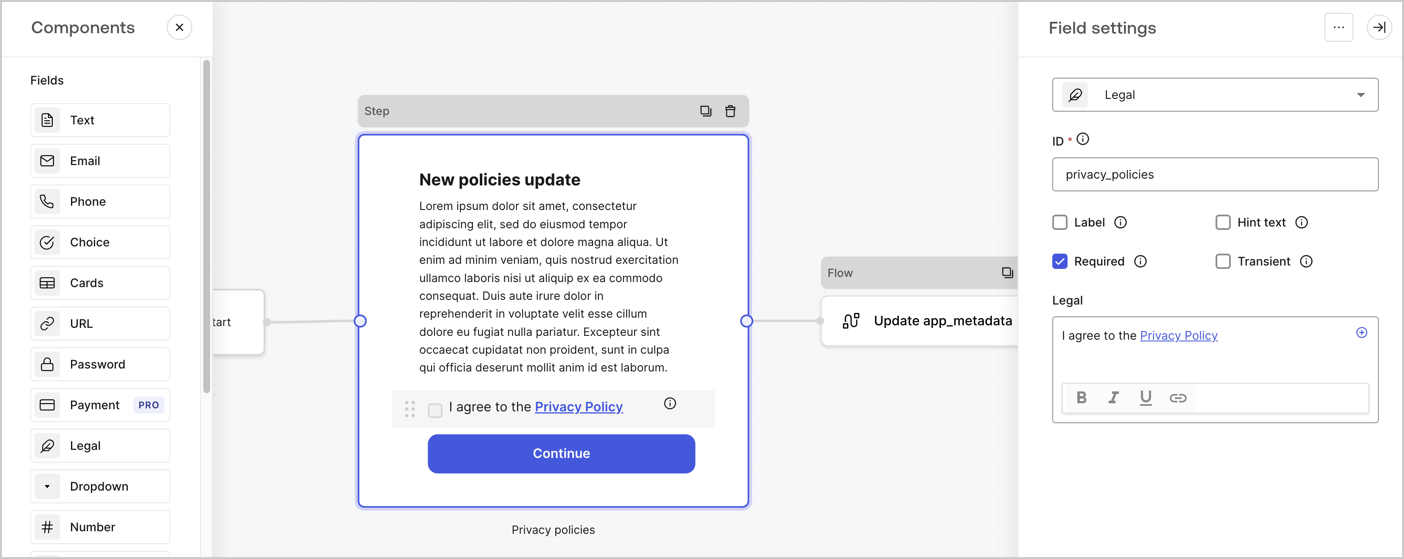
Step ノードは、ユーザーに表示されるグラフィカルインターフェースです。次の手順で、新しい同意の承諾値を収集するための [Fields](/docs/ja-jp/customize/forms/nodes-and-components) を Step ノードに追加します。

1. **Components menu** から **Rich text** フィールドを **Step** ノードにドラッグします。

   * **Rich text**: プライバシーポリシーの更新内容に関する説明を入力します。
   * **Save** を選択します。
2. **Legal** フィールドを **Step** ノードにドラッグします。

   * **ID**: `privacy_policies` と入力します。
   * **Required**: チェックボックスをオンにします。
   * **Legal**: `I agree to the Privacy Policy` と入力します。
   * **Save** を選択します。
3. 保存するには **Publish** を選択します。
<Frame>
  <img src="https://mintcdn.com/docs-dev-chore-myaccount-api-autoupdate/yeB-_kMT57yxnTpV/docs/images/cdy7uua7fh8z/59zFFjQjAnjogkc2QGIqqJ/0ad66b1b636544122aa4e65968b76c2c/privacy-policy-step-node.png?fit=max&auto=format&n=yeB-_kMT57yxnTpV&q=85&s=f103bf22bf111cfec6a269428890945b" alt="Dashboard > Actions > Forms > プライバシーポリシーのユースケースの Step ノード" data-og-width="1404" width="1404" data-og-height="559" height="559" data-path="docs/images/cdy7uua7fh8z/59zFFjQjAnjogkc2QGIqqJ/0ad66b1b636544122aa4e65968b76c2c/privacy-policy-step-node.png" data-optimize="true" data-opv="3" srcset="https://mintcdn.com/docs-dev-chore-myaccount-api-autoupdate/yeB-_kMT57yxnTpV/docs/images/cdy7uua7fh8z/59zFFjQjAnjogkc2QGIqqJ/0ad66b1b636544122aa4e65968b76c2c/privacy-policy-step-node.png?w=280&fit=max&auto=format&n=yeB-_kMT57yxnTpV&q=85&s=6df2360cf903db0389ea1be28f532cdc 280w, https://mintcdn.com/docs-dev-chore-myaccount-api-autoupdate/yeB-_kMT57yxnTpV/docs/images/cdy7uua7fh8z/59zFFjQjAnjogkc2QGIqqJ/0ad66b1b636544122aa4e65968b76c2c/privacy-policy-step-node.png?w=560&fit=max&auto=format&n=yeB-_kMT57yxnTpV&q=85&s=2170cb6cf181da80b96c892c5bb68d4b 560w, https://mintcdn.com/docs-dev-chore-myaccount-api-autoupdate/yeB-_kMT57yxnTpV/docs/images/cdy7uua7fh8z/59zFFjQjAnjogkc2QGIqqJ/0ad66b1b636544122aa4e65968b76c2c/privacy-policy-step-node.png?w=840&fit=max&auto=format&n=yeB-_kMT57yxnTpV&q=85&s=012e86fc2787c4f7f5a6caae3b7dafdf 840w, https://mintcdn.com/docs-dev-chore-myaccount-api-autoupdate/yeB-_kMT57yxnTpV/docs/images/cdy7uua7fh8z/59zFFjQjAnjogkc2QGIqqJ/0ad66b1b636544122aa4e65968b76c2c/privacy-policy-step-node.png?w=1100&fit=max&auto=format&n=yeB-_kMT57yxnTpV&q=85&s=657af9601411e4c18763b52fb4c5c20f 1100w, https://mintcdn.com/docs-dev-chore-myaccount-api-autoupdate/yeB-_kMT57yxnTpV/docs/images/cdy7uua7fh8z/59zFFjQjAnjogkc2QGIqqJ/0ad66b1b636544122aa4e65968b76c2c/privacy-policy-step-node.png?w=1650&fit=max&auto=format&n=yeB-_kMT57yxnTpV&q=85&s=36810e6de566ef1a8cf8abf922722b5f 1650w, https://mintcdn.com/docs-dev-chore-myaccount-api-autoupdate/yeB-_kMT57yxnTpV/docs/images/cdy7uua7fh8z/59zFFjQjAnjogkc2QGIqqJ/0ad66b1b636544122aa4e65968b76c2c/privacy-policy-step-node.png?w=2500&fit=max&auto=format&n=yeB-_kMT57yxnTpV&q=85&s=0db9dbe65784661ae3bdede4fb0c5950 2500w" />
</Frame>

<h3 id="configure-the-flow-node">
  Flow ノードを設定する
</h3>

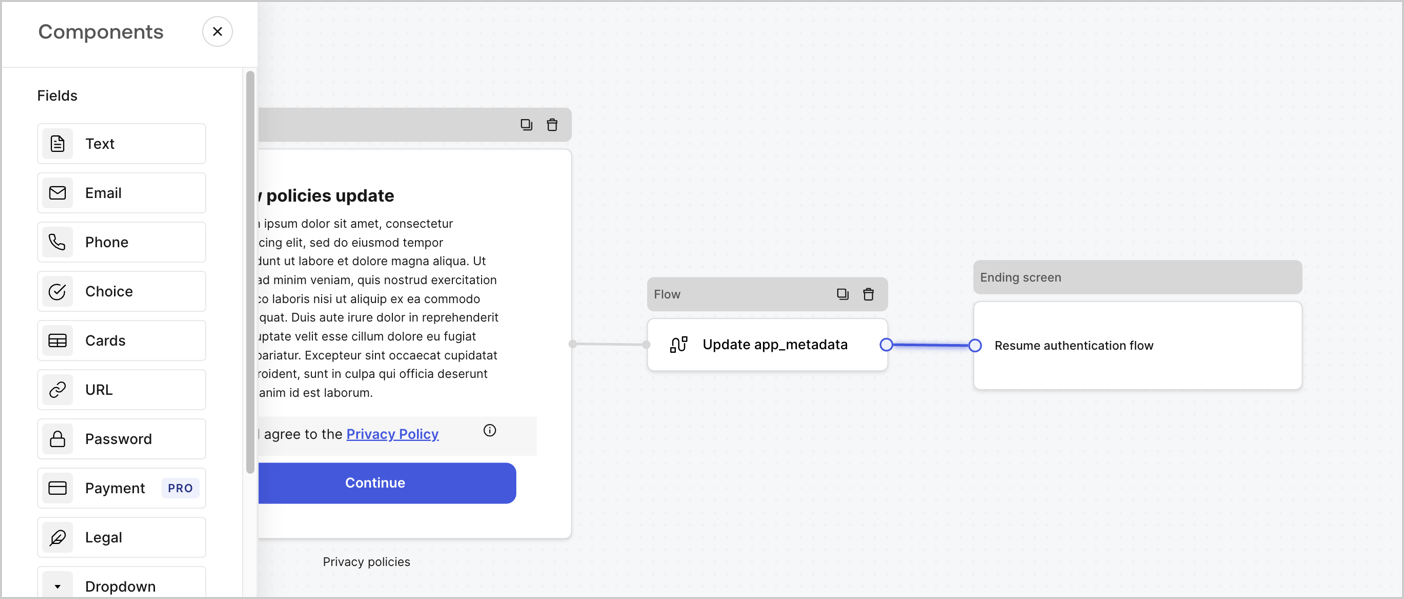
次の手順に従って、**Step** ノードの後に **Flow** ノードを追加し、`app_metadata` を更新して認証フローを再開します。

1. フォームエディターの下部で **Flow** を選択します。
2. **Step** ノードと **Ending Screen** ノードの間にある既存のリンクを削除します。
3. 新しい **Flow** > **Click to add a flow** > **Create a new flow.** を選択します。

   * **Name** フィールドに `Update app_metadata` と入力します。
   * **Create** を選択します。
   * **Save** を選択します。
4. 下図のように、**Flow** ノードを **Step** ノードと **Ending Screen** ノードにリンクします。
5. 保存するには **Publish** を選択します。
<Frame>
  <img src="https://mintcdn.com/docs-dev-chore-myaccount-api-autoupdate/TwrLWOmtEE_zyIZg/docs/images/cdy7uua7fh8z/6YIkzm7SrpM9LW76AXuRzh/353c518fe82bbaa440836da1d83596d6/link-policies.png?fit=max&auto=format&n=TwrLWOmtEE_zyIZg&q=85&s=3d6a47f2cc06ef4a1de85a8f34f46814" alt="Dashboard > Actions > Forms > Form" data-og-width="1404" width="1404" data-og-height="599" height="599" data-path="docs/images/cdy7uua7fh8z/6YIkzm7SrpM9LW76AXuRzh/353c518fe82bbaa440836da1d83596d6/link-policies.png" data-optimize="true" data-opv="3" srcset="https://mintcdn.com/docs-dev-chore-myaccount-api-autoupdate/TwrLWOmtEE_zyIZg/docs/images/cdy7uua7fh8z/6YIkzm7SrpM9LW76AXuRzh/353c518fe82bbaa440836da1d83596d6/link-policies.png?w=280&fit=max&auto=format&n=TwrLWOmtEE_zyIZg&q=85&s=4418df3e0b183e812e9691df15f5d60f 280w, https://mintcdn.com/docs-dev-chore-myaccount-api-autoupdate/TwrLWOmtEE_zyIZg/docs/images/cdy7uua7fh8z/6YIkzm7SrpM9LW76AXuRzh/353c518fe82bbaa440836da1d83596d6/link-policies.png?w=560&fit=max&auto=format&n=TwrLWOmtEE_zyIZg&q=85&s=5e5909c3442ba54ba16b7d44beee66ce 560w, https://mintcdn.com/docs-dev-chore-myaccount-api-autoupdate/TwrLWOmtEE_zyIZg/docs/images/cdy7uua7fh8z/6YIkzm7SrpM9LW76AXuRzh/353c518fe82bbaa440836da1d83596d6/link-policies.png?w=840&fit=max&auto=format&n=TwrLWOmtEE_zyIZg&q=85&s=41e66bb767e742708cb1b4ef7b41cb30 840w, https://mintcdn.com/docs-dev-chore-myaccount-api-autoupdate/TwrLWOmtEE_zyIZg/docs/images/cdy7uua7fh8z/6YIkzm7SrpM9LW76AXuRzh/353c518fe82bbaa440836da1d83596d6/link-policies.png?w=1100&fit=max&auto=format&n=TwrLWOmtEE_zyIZg&q=85&s=580328323edaaa78e64d1a46c318cc96 1100w, https://mintcdn.com/docs-dev-chore-myaccount-api-autoupdate/TwrLWOmtEE_zyIZg/docs/images/cdy7uua7fh8z/6YIkzm7SrpM9LW76AXuRzh/353c518fe82bbaa440836da1d83596d6/link-policies.png?w=1650&fit=max&auto=format&n=TwrLWOmtEE_zyIZg&q=85&s=ddc71a586c505fbdc624097af575b651 1650w, https://mintcdn.com/docs-dev-chore-myaccount-api-autoupdate/TwrLWOmtEE_zyIZg/docs/images/cdy7uua7fh8z/6YIkzm7SrpM9LW76AXuRzh/353c518fe82bbaa440836da1d83596d6/link-policies.png?w=2500&fit=max&auto=format&n=TwrLWOmtEE_zyIZg&q=85&s=ab75a68d83e59977f27430951b7451c4 2500w" />
</Frame>

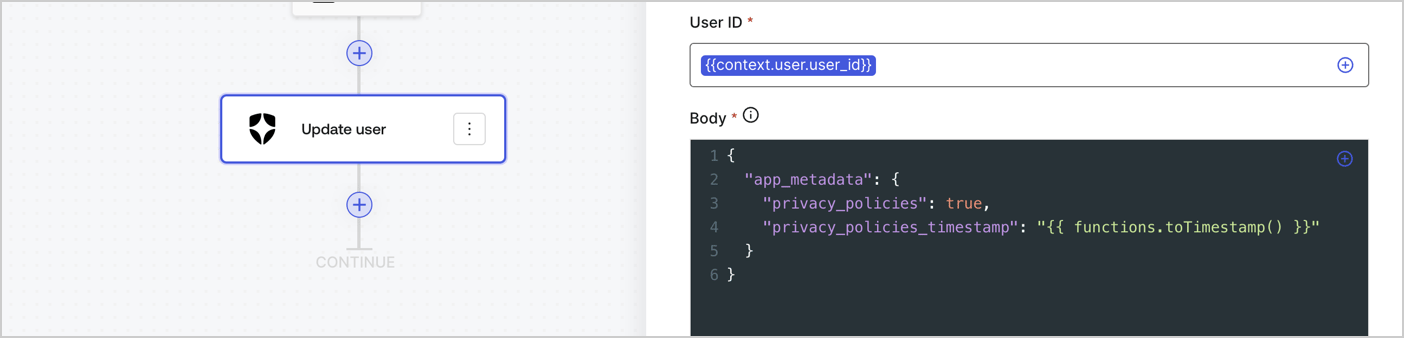
次の手順に従って、フローに Auth0 の Update user アクションを追加します。

1. **Flow** **Update app\_metadata** > **Edit flow** を選択し、新しいタブで Flow エディターを開きます。
2. StartAction の下にある **+** アイコンを選択して **Update user** アクションを追加します。以下のフィールドに入力し、**Save** を選択して続行します。

   * **Connection**: ドロップダウンから、M2M アプリケーション用の Vault 接続を選択します。

   * **User ID**: `{{context.user.user_id}}` と入力します。

   * **Body**: 次のコードをコピー＆ペーストして、privacy\_policies プロパティと privacy\_policies\_timestamp プロパティで app\_metadata を更新します。

     ```text lines theme={null}
     {
       "app_metadata": {
         "privacy_policies": true,
         "privacy_policies_timestamp": "{{ functions.toTimestamp() }}"
       }
     }
     ```

   * **Save** を選択します。
3. 保存するには **Publish** を選択します。
<Frame>
  <img src="https://mintcdn.com/docs-dev-chore-myaccount-api-autoupdate/0pc0J-xi5wIlMd5V/docs/images/cdy7uua7fh8z/CvMNIwWrOUwaFW4X3G28p/1fb70ae57a20749d9ffaaba8dc0b7e26/update-user-privacy.png?fit=max&auto=format&n=0pc0J-xi5wIlMd5V&q=85&s=518b06db769f31f362864c94065c37a5" alt="Dashboard > Actions > Forms > User case privacy policy code" data-og-width="1404" width="1404" data-og-height="338" height="338" data-path="docs/images/cdy7uua7fh8z/CvMNIwWrOUwaFW4X3G28p/1fb70ae57a20749d9ffaaba8dc0b7e26/update-user-privacy.png" data-optimize="true" data-opv="3" srcset="https://mintcdn.com/docs-dev-chore-myaccount-api-autoupdate/0pc0J-xi5wIlMd5V/docs/images/cdy7uua7fh8z/CvMNIwWrOUwaFW4X3G28p/1fb70ae57a20749d9ffaaba8dc0b7e26/update-user-privacy.png?w=280&fit=max&auto=format&n=0pc0J-xi5wIlMd5V&q=85&s=a0ffbaae90e7930c64002a9d5c9d46c3 280w, https://mintcdn.com/docs-dev-chore-myaccount-api-autoupdate/0pc0J-xi5wIlMd5V/docs/images/cdy7uua7fh8z/CvMNIwWrOUwaFW4X3G28p/1fb70ae57a20749d9ffaaba8dc0b7e26/update-user-privacy.png?w=560&fit=max&auto=format&n=0pc0J-xi5wIlMd5V&q=85&s=9e876b51167d83ff1355f64afb02d8d6 560w, https://mintcdn.com/docs-dev-chore-myaccount-api-autoupdate/0pc0J-xi5wIlMd5V/docs/images/cdy7uua7fh8z/CvMNIwWrOUwaFW4X3G28p/1fb70ae57a20749d9ffaaba8dc0b7e26/update-user-privacy.png?w=840&fit=max&auto=format&n=0pc0J-xi5wIlMd5V&q=85&s=41a71810a655a2f8855e533b28f8a89c 840w, https://mintcdn.com/docs-dev-chore-myaccount-api-autoupdate/0pc0J-xi5wIlMd5V/docs/images/cdy7uua7fh8z/CvMNIwWrOUwaFW4X3G28p/1fb70ae57a20749d9ffaaba8dc0b7e26/update-user-privacy.png?w=1100&fit=max&auto=format&n=0pc0J-xi5wIlMd5V&q=85&s=0b90083c02dd35a1fd6cbd94991422df 1100w, https://mintcdn.com/docs-dev-chore-myaccount-api-autoupdate/0pc0J-xi5wIlMd5V/docs/images/cdy7uua7fh8z/CvMNIwWrOUwaFW4X3G28p/1fb70ae57a20749d9ffaaba8dc0b7e26/update-user-privacy.png?w=1650&fit=max&auto=format&n=0pc0J-xi5wIlMd5V&q=85&s=17270558ace45087d3b6bc37987dd8b2 1650w, https://mintcdn.com/docs-dev-chore-myaccount-api-autoupdate/0pc0J-xi5wIlMd5V/docs/images/cdy7uua7fh8z/CvMNIwWrOUwaFW4X3G28p/1fb70ae57a20749d9ffaaba8dc0b7e26/update-user-privacy.png?w=2500&fit=max&auto=format&n=0pc0J-xi5wIlMd5V&q=85&s=40881d1d92158d6a0cc0d3d78dceeb89 2500w" />
</Frame>

<Callout icon="file-lines" color="#0EA5E9" iconType="regular">
  フロー **Update app\_metadata** では、app`_metadata` オブジェクトに `privacy_policies: true` を追加し、さらに [helper function.](/docs/ja-jp/customize/forms/variables) を使ってタイムスタンプを生成します。
</Callout>

<h2 id="retrieve-the-form-render-code">
  フォームのレンダリングコードを取得する
</h2>

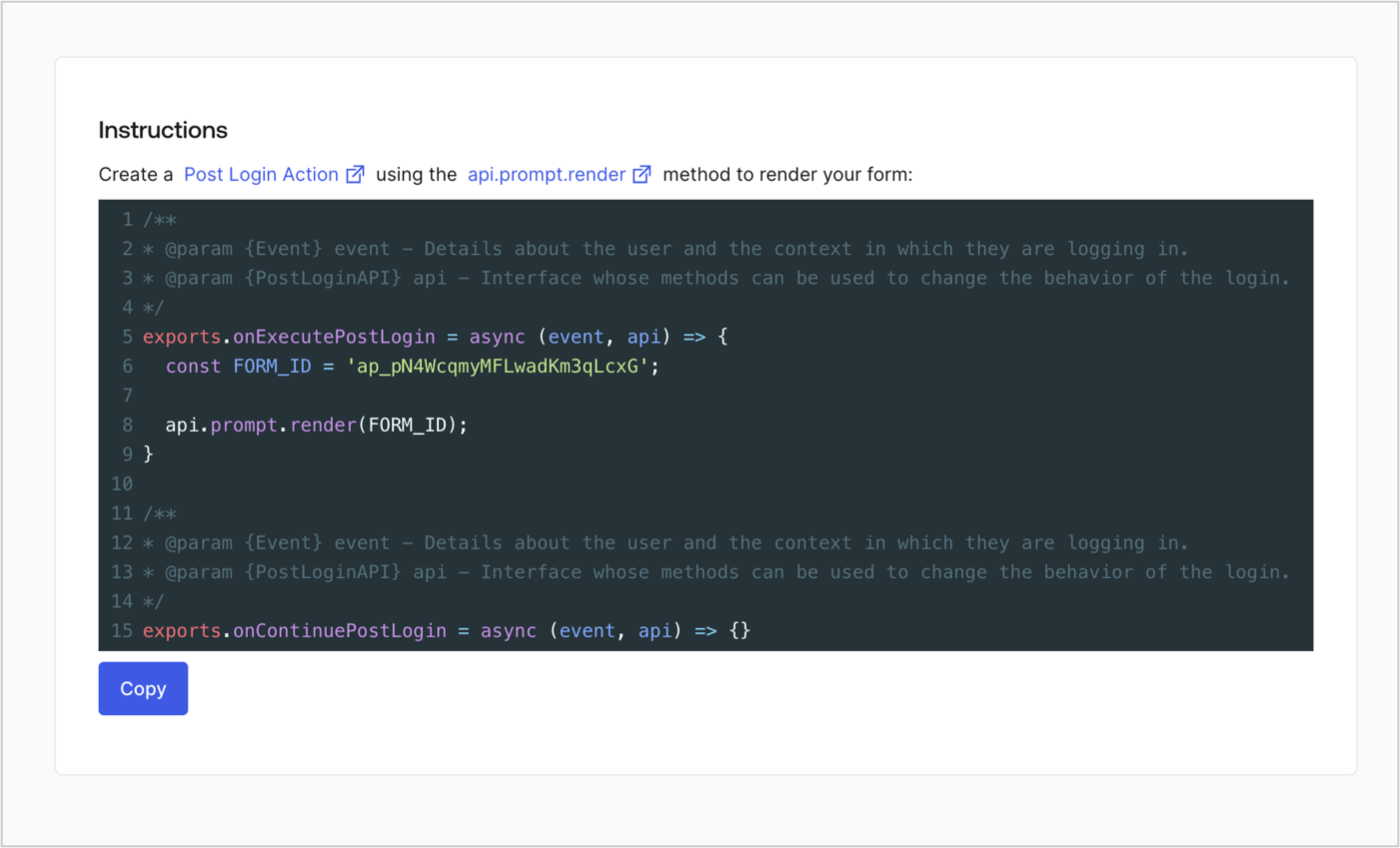
以下の手順に従って、カスタムの Post Login Action でフォームを表示するためのレンダリングコードを取得します。

* フォームエディターで、**`<> Render`** を選択します。
* **Copy** を選択します。
<Frame>
  <img src="https://mintcdn.com/docs-dev-chore-myaccount-api-autoupdate/8QDqDsYoCi_WTBFO/docs/images/cdy7uua7fh8z/2EIUzc539sq9lwoTKbjoJv/496a864c0fc44a782c9cadca119dbfb0/embed.png?fit=max&auto=format&n=8QDqDsYoCi_WTBFO&q=85&s=741bd11e736604e33d0fb1a59ed78dfe" alt="Dashboard > Actions > Forms > Form > Embed" data-og-width="1400" width="1400" data-og-height="848" height="848" data-path="docs/images/cdy7uua7fh8z/2EIUzc539sq9lwoTKbjoJv/496a864c0fc44a782c9cadca119dbfb0/embed.png" data-optimize="true" data-opv="3" srcset="https://mintcdn.com/docs-dev-chore-myaccount-api-autoupdate/8QDqDsYoCi_WTBFO/docs/images/cdy7uua7fh8z/2EIUzc539sq9lwoTKbjoJv/496a864c0fc44a782c9cadca119dbfb0/embed.png?w=280&fit=max&auto=format&n=8QDqDsYoCi_WTBFO&q=85&s=c48e68074ebe20efb4ce43cc8a3cc182 280w, https://mintcdn.com/docs-dev-chore-myaccount-api-autoupdate/8QDqDsYoCi_WTBFO/docs/images/cdy7uua7fh8z/2EIUzc539sq9lwoTKbjoJv/496a864c0fc44a782c9cadca119dbfb0/embed.png?w=560&fit=max&auto=format&n=8QDqDsYoCi_WTBFO&q=85&s=6a89ef932ef9f113ab5c2303cf5db408 560w, https://mintcdn.com/docs-dev-chore-myaccount-api-autoupdate/8QDqDsYoCi_WTBFO/docs/images/cdy7uua7fh8z/2EIUzc539sq9lwoTKbjoJv/496a864c0fc44a782c9cadca119dbfb0/embed.png?w=840&fit=max&auto=format&n=8QDqDsYoCi_WTBFO&q=85&s=90d6001f103f89f2e67cd24624b6da8d 840w, https://mintcdn.com/docs-dev-chore-myaccount-api-autoupdate/8QDqDsYoCi_WTBFO/docs/images/cdy7uua7fh8z/2EIUzc539sq9lwoTKbjoJv/496a864c0fc44a782c9cadca119dbfb0/embed.png?w=1100&fit=max&auto=format&n=8QDqDsYoCi_WTBFO&q=85&s=ad7ba4837d0eb9ed48910c7d4a32c2aa 1100w, https://mintcdn.com/docs-dev-chore-myaccount-api-autoupdate/8QDqDsYoCi_WTBFO/docs/images/cdy7uua7fh8z/2EIUzc539sq9lwoTKbjoJv/496a864c0fc44a782c9cadca119dbfb0/embed.png?w=1650&fit=max&auto=format&n=8QDqDsYoCi_WTBFO&q=85&s=43015aed00e4bd000b426e5b7bca1c63 1650w, https://mintcdn.com/docs-dev-chore-myaccount-api-autoupdate/8QDqDsYoCi_WTBFO/docs/images/cdy7uua7fh8z/2EIUzc539sq9lwoTKbjoJv/496a864c0fc44a782c9cadca119dbfb0/embed.png?w=2500&fit=max&auto=format&n=8QDqDsYoCi_WTBFO&q=85&s=3c99152e4672f4e458cf5d22ba3bbc81 2500w" />
</Frame>

<h2 id="create-a-post-login-action">
  Post Login Action を作成する
</h2>

次の手順に従って、フォームを表示する post-login Action を作成します。

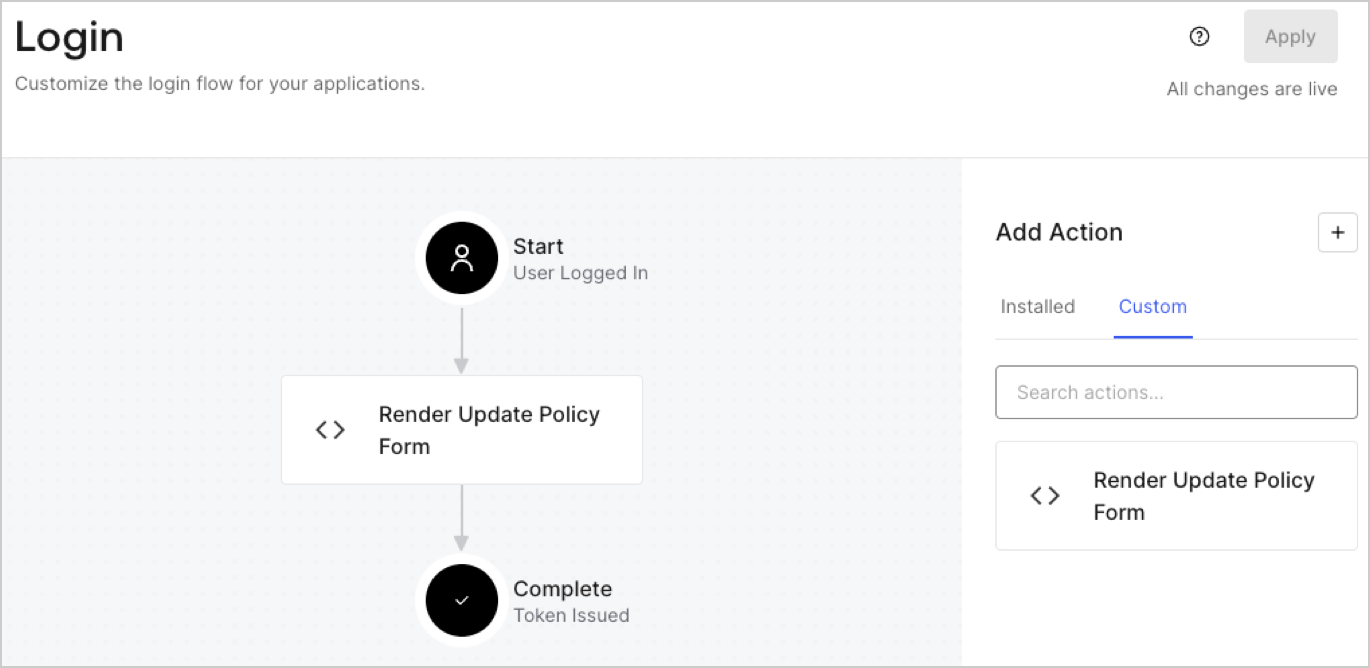
1. **Auth0 Dashboard > Actions > Flows > Login** に移動します。
2. **+** アイコンを選択し、**Build from scratch** を選択します。

   * **Name**: `Render Update Policy Form` と入力します。
   * **Trigger**: `Login / Post Login` を選択します。
   * **Runtime**: 推奨バージョンを選択します。
3. **Create** を選択します。

post-login Action を設定するには、次の手順を実行します。

1. Code editor 内の既存のコードを削除します。
2. フォームを表示するコードを Code editor に貼り付けます。
3. フォームを表示するための条件ロジックを定義するよう、コードを編集します。

   ```javascript lines theme={null}
   /**
   * @param {Event} event - ユーザーと、そのユーザーがログインしているコンテキストに関する詳細。
   * @param {PostLoginAPI} api - ログインの動作を変更するためにメソッドを使用できるインターフェース。
   */
   exports.onExecutePostLogin = async (event, api) => {
     const FORM_ID = 'REPLACE_WITH_YOUR_FORM_ID';

     if (event.user.app_metadata.privacy_policies !== true) {
       api.prompt.render(FORM_ID);
     }
   }

   exports.onContinuePostLogin = async (event, api) => { }
   ```

   <Callout icon="file-lines" color="#0EA5E9" iconType="regular">
     上記のコード例では、ユーザーの app metadata に `privacy_policies` プロパティがない場合、フォームが表示されます。
   </Callout>
4. **Deploy** を選択します。
5. **Render Update Policy Form** Action を **Login** フローにドラッグ＆ドロップします。

   <Frame>
     <img src="https://mintcdn.com/docs-dev-chore-myaccount-api-autoupdate/92Wt_74aRs6J5W5X/docs/images/cdy7uua7fh8z/5TOwDgevZsBqd7yZynUYWU/41ca909dc3007aed4f40ff794a05efa5/postlogin.png?fit=max&auto=format&n=92Wt_74aRs6J5W5X&q=85&s=9f55cab43a942b4eb651b7c05a84e244" alt="Dashboard > Forms > Use Case > Render update policy form login action" data-og-width="1370" width="1370" data-og-height="668" height="668" data-path="docs/images/cdy7uua7fh8z/5TOwDgevZsBqd7yZynUYWU/41ca909dc3007aed4f40ff794a05efa5/postlogin.png" data-optimize="true" data-opv="3" srcset="https://mintcdn.com/docs-dev-chore-myaccount-api-autoupdate/92Wt_74aRs6J5W5X/docs/images/cdy7uua7fh8z/5TOwDgevZsBqd7yZynUYWU/41ca909dc3007aed4f40ff794a05efa5/postlogin.png?w=280&fit=max&auto=format&n=92Wt_74aRs6J5W5X&q=85&s=48567552e117be67fc268be33601d009 280w, https://mintcdn.com/docs-dev-chore-myaccount-api-autoupdate/92Wt_74aRs6J5W5X/docs/images/cdy7uua7fh8z/5TOwDgevZsBqd7yZynUYWU/41ca909dc3007aed4f40ff794a05efa5/postlogin.png?w=560&fit=max&auto=format&n=92Wt_74aRs6J5W5X&q=85&s=625c509f789d7ead7b3e08742e78305f 560w, https://mintcdn.com/docs-dev-chore-myaccount-api-autoupdate/92Wt_74aRs6J5W5X/docs/images/cdy7uua7fh8z/5TOwDgevZsBqd7yZynUYWU/41ca909dc3007aed4f40ff794a05efa5/postlogin.png?w=840&fit=max&auto=format&n=92Wt_74aRs6J5W5X&q=85&s=7fde760bab88d22aaecf43ce5009d9cc 840w, https://mintcdn.com/docs-dev-chore-myaccount-api-autoupdate/92Wt_74aRs6J5W5X/docs/images/cdy7uua7fh8z/5TOwDgevZsBqd7yZynUYWU/41ca909dc3007aed4f40ff794a05efa5/postlogin.png?w=1100&fit=max&auto=format&n=92Wt_74aRs6J5W5X&q=85&s=f1d591bf771a06dc041fc4891861a515 1100w, https://mintcdn.com/docs-dev-chore-myaccount-api-autoupdate/92Wt_74aRs6J5W5X/docs/images/cdy7uua7fh8z/5TOwDgevZsBqd7yZynUYWU/41ca909dc3007aed4f40ff794a05efa5/postlogin.png?w=1650&fit=max&auto=format&n=92Wt_74aRs6J5W5X&q=85&s=b78caf56091e43e9dac24f2de8074d08 1650w, https://mintcdn.com/docs-dev-chore-myaccount-api-autoupdate/92Wt_74aRs6J5W5X/docs/images/cdy7uua7fh8z/5TOwDgevZsBqd7yZynUYWU/41ca909dc3007aed4f40ff794a05efa5/postlogin.png?w=2500&fit=max&auto=format&n=92Wt_74aRs6J5W5X&q=85&s=e3b9771be8b98ce89dc8e4bdfc9b01b5 2500w" />
   </Frame>
6. **Apply** を選択します。

<h3 id="test-implementation">
  実装をテストする
</h3>

次の手順に従って、実装をテストします。

1. `app_metadata` 属性の `privacy_policies` に値が設定されていない既存ユーザーでログインします。
2. Login フロー の post-login Action によってフォームが表示され、同意を求めるプロンプトが表示されます。
3. **Auth0 Dashboard > User Management > Users** を選択し、該当するユーザーを見つけて、`app_metadata` 属性の `privacy_policies` に `true` の値とタイムスタンプが含まれていることを確認します。